In-App Messages
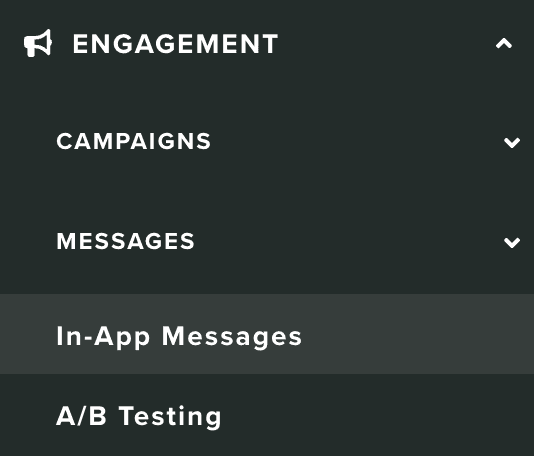
In this area you can create in-app messages for your mobile and web app. To access this area, you will need to expand the Engagement menu and click in In-App Messages:
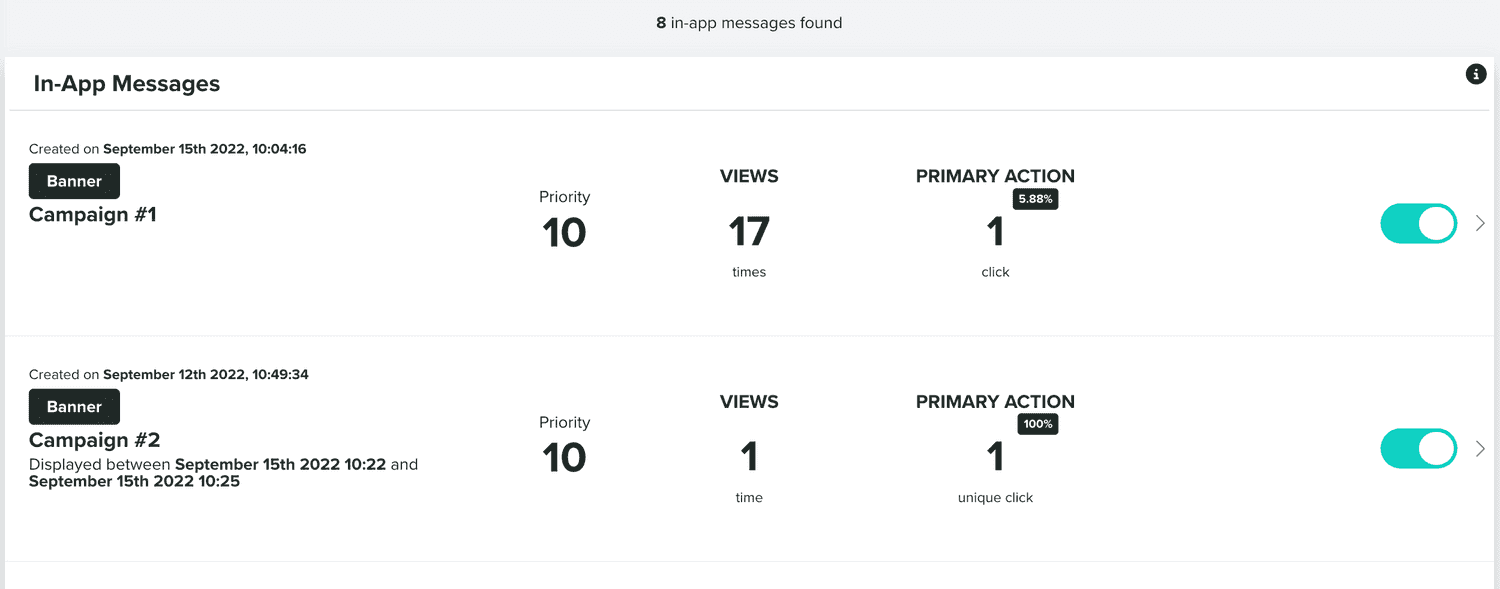
In this area, you will find all the in-app messages you've created:
You can also search for in-app messages in the following section:

To create new in-app messages, you should use the button in the top right corner of this page:
This will take you to a new area, where you can compose your in-app message experience.
Setup
In this tab, you will need to provide us basic information about the in-app message, some of it, will define how it should work.
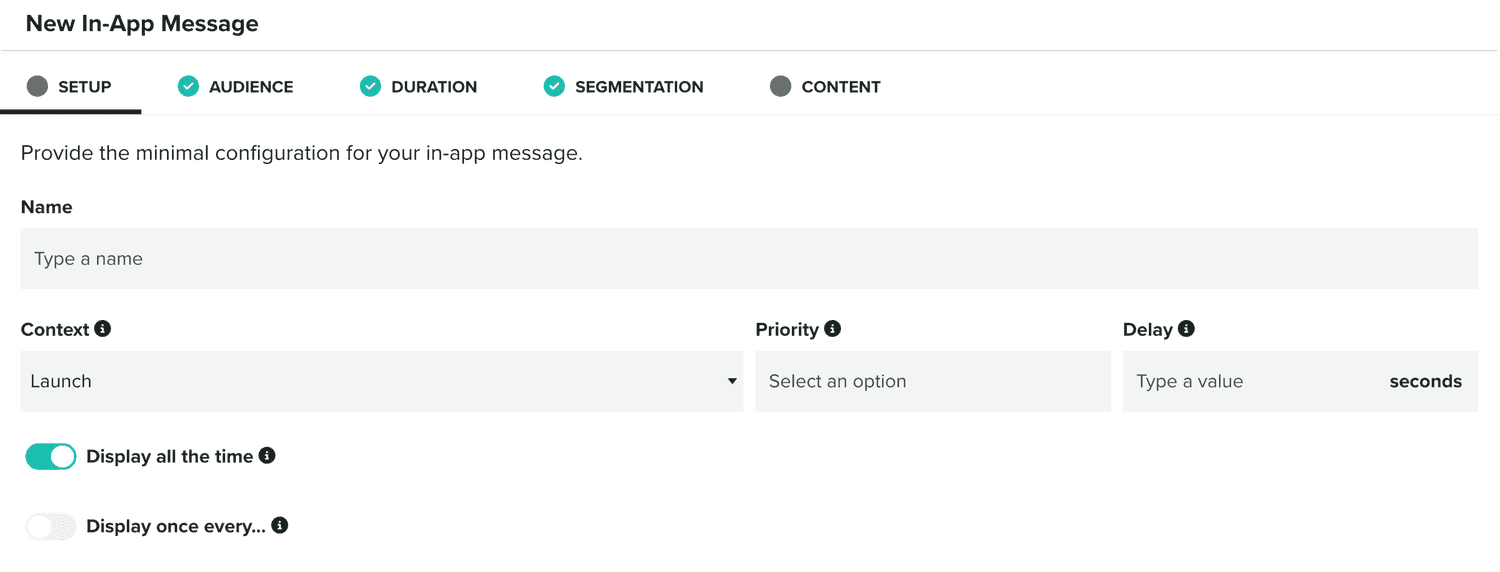
For example, you must always provide a name:

You can also define the presentation options for your in-app message:

Where the Context defines what lifecycles events trigger the presentation. There's two options, Launch which makes sure the in-app message is only triggered when the app launches or web page loads or Launch & Foreground when you want your in-app message to be triggered when the app launches or web page loads and when it becomes visible.
Additionally, you can also provide a priority. Because our SDK will only show one in-app message, this value will define what in-app message to show, when the users are eligible for multiple in-app messages. In-app messages with a higher priority will be displayed.
Finally, you can also define a delay. This is the amount of time we will use when the Context is triggered until the in-app is displayed.
You will also need to define a frequency:
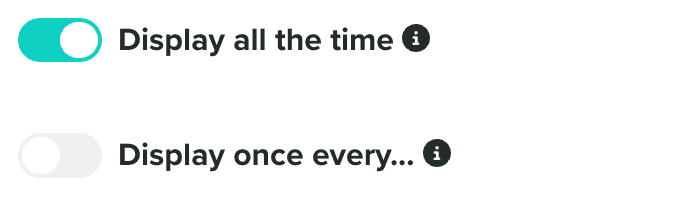
By default, we will display it every time the Context is triggered. But you can also choose to display it only once during a certain amount of time:

Which would prevent displaying the in-app messages with every launch or visibility change.
Audience
Optionally, in this tab, you will define what devices in your audience are eligible for this in-app message.
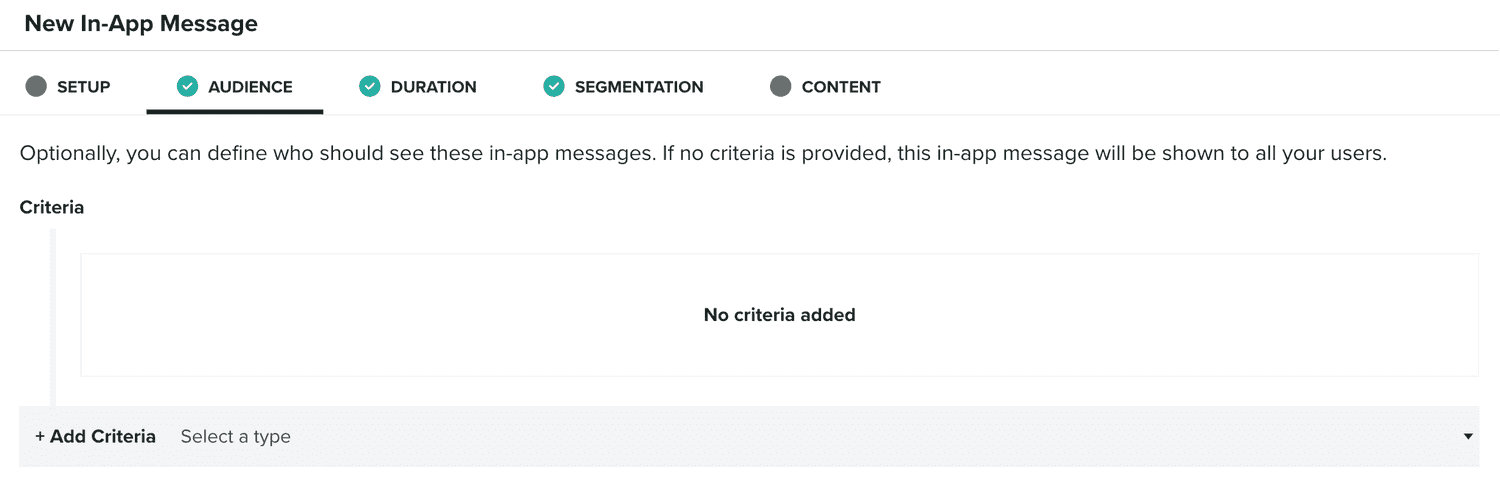
The audience is defined using our criteria component, where you can define a combination of Segments, Tags, Location, Device Properties or User Data Fields:
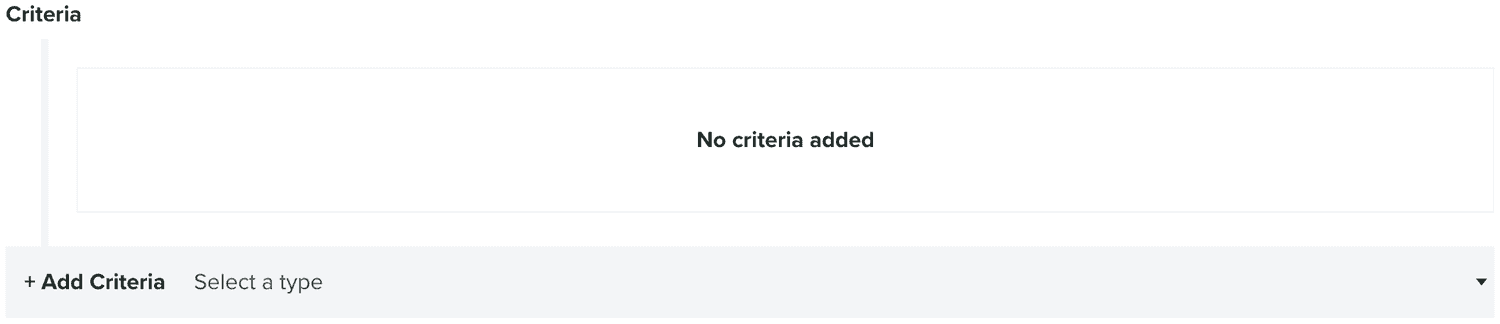
To learn more about criteria, please read the guides located here.
As you define your audience, an estimation is computed and displayed as follows:

Duration
This tab of an in-app message composer is not mandatory. If you do not want to restrict your campaign based on date or time, you can simply ignore it. If you do want to provide a date period, time of the day or days of the week, you should then define these in this area.
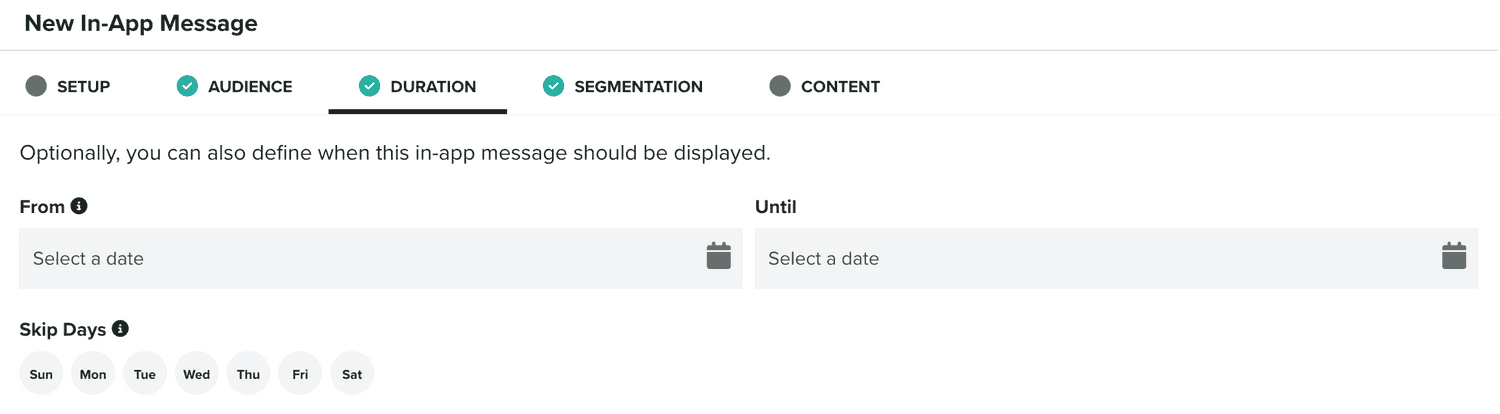
You can always change this period afterwards as you see fit.
Segmentation
In this tab, you will be able to define rules that automatically categorize users when the in-app message is displayed, allowing you to track engagement and behavior that you can later target on follow-up campaigns.
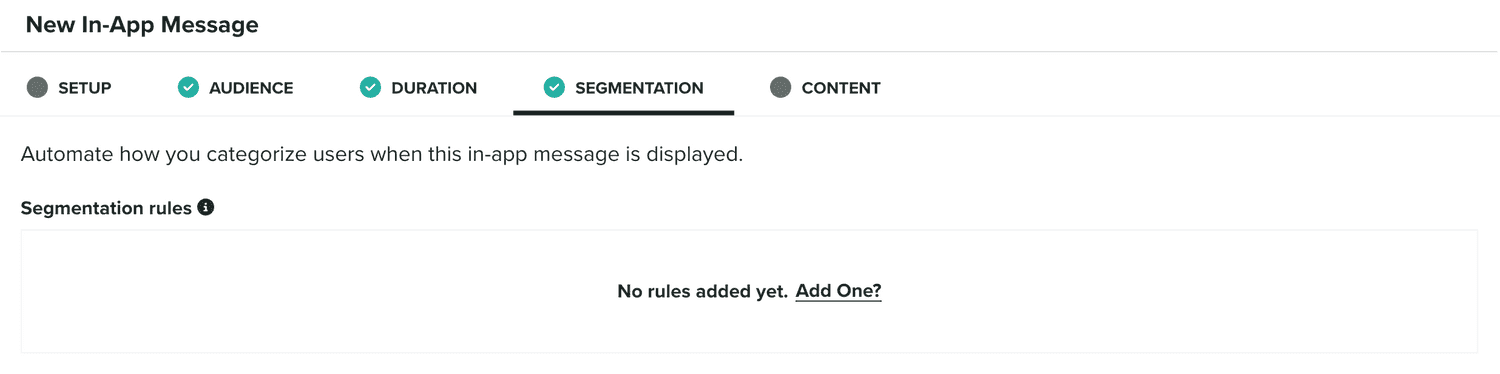
You will use our segmentation rules component to define those rules:

To learn more about segmentation rules, please read the guides located here.
Content
In this tab you will define what content is displayed to your users. There are three different types of in-app messages, the Banner, the Card and the Fullscreen content types.
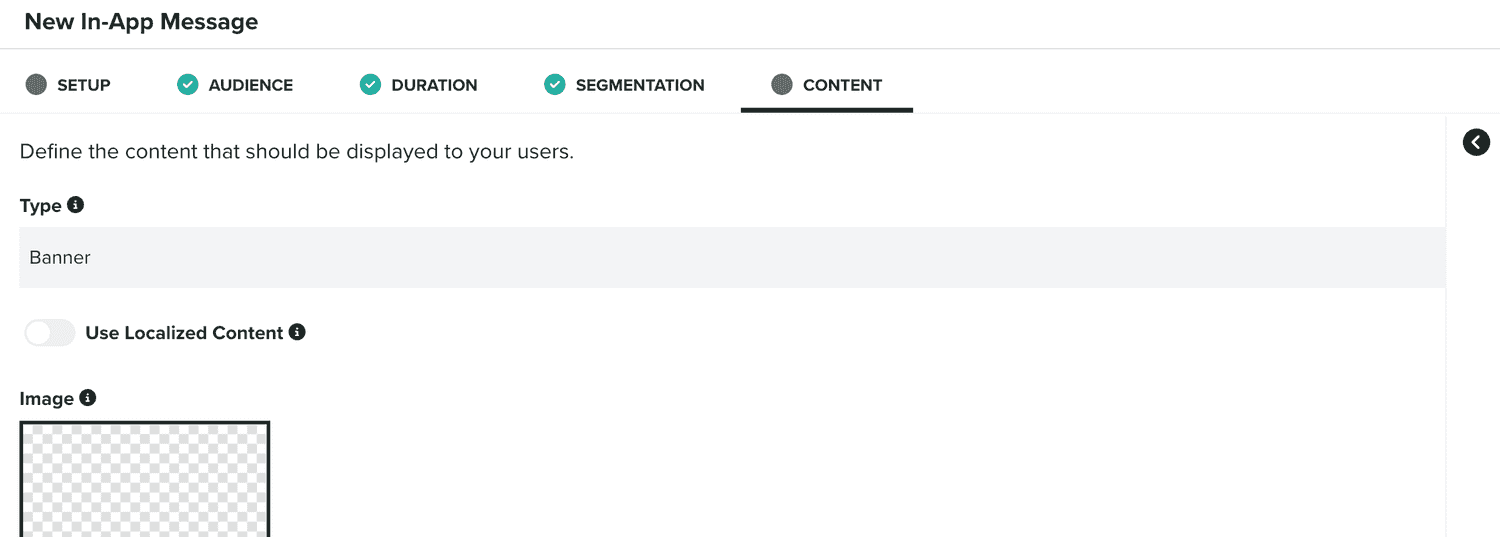
Each type will have its own requirements. You select the type in the following field:

Banner
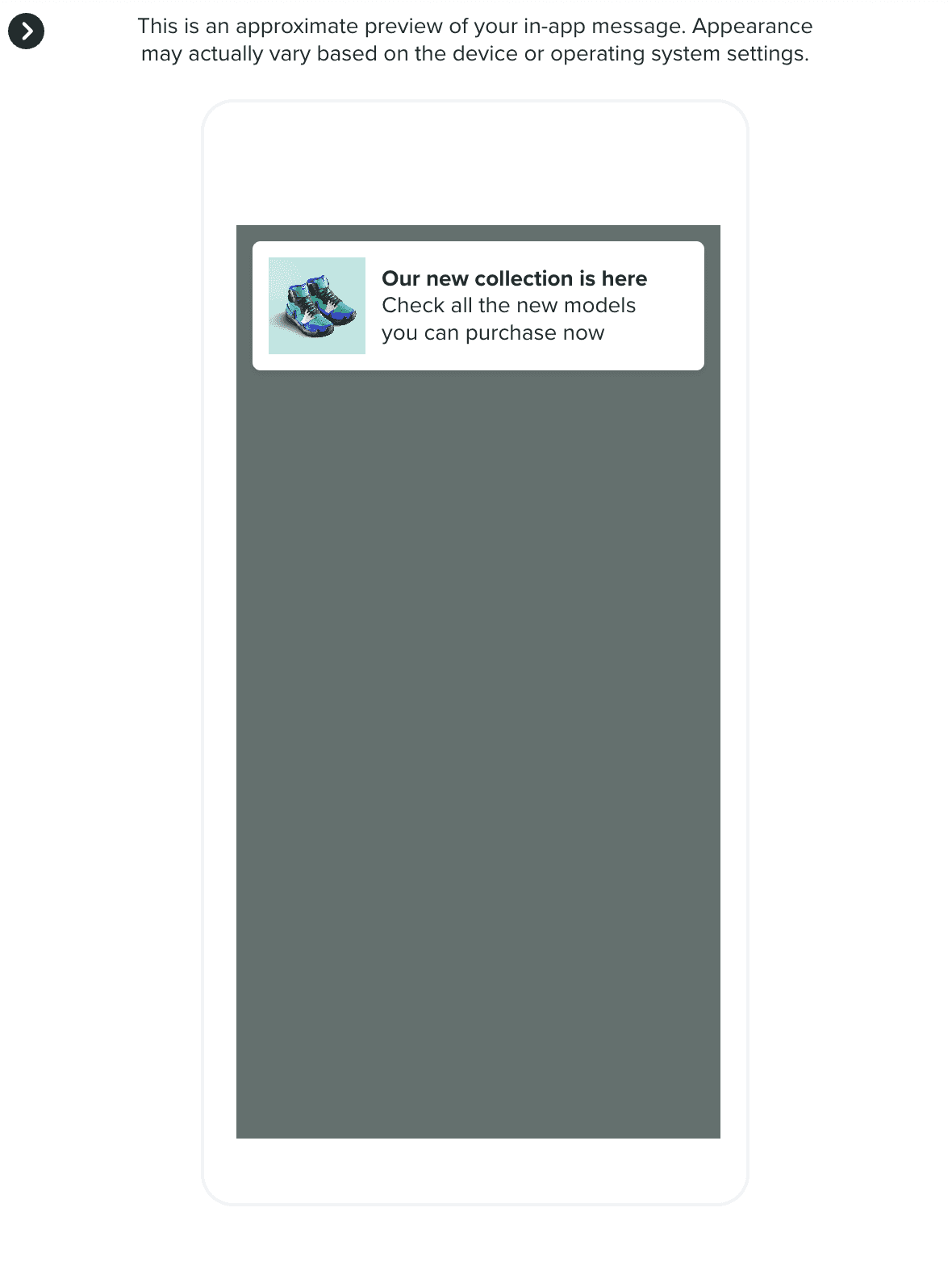
The banner will allow you to create a minimalistic user experience by displaying a small banner on the top of your app or website. You can upload an image, which will be displayed as a thumbnail in this banner:
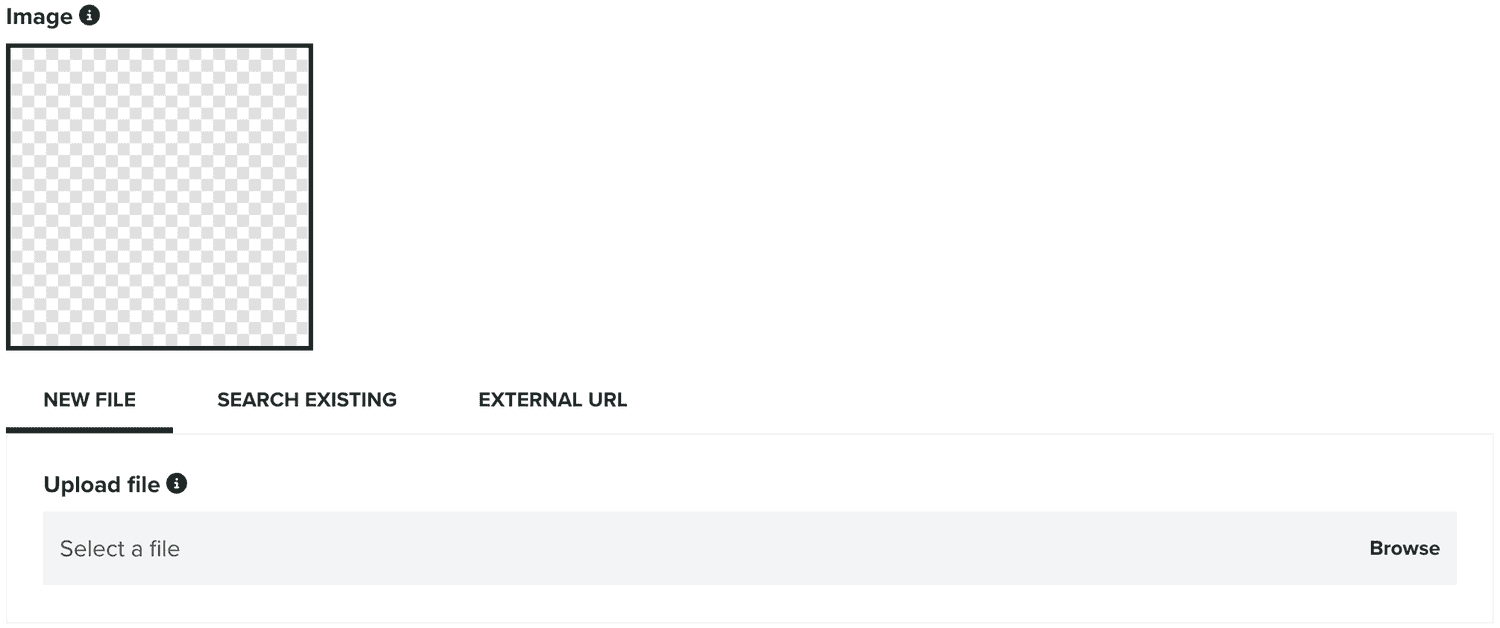
You can also provide a title for the banner in the following field:

And you must provide a message in the following field:

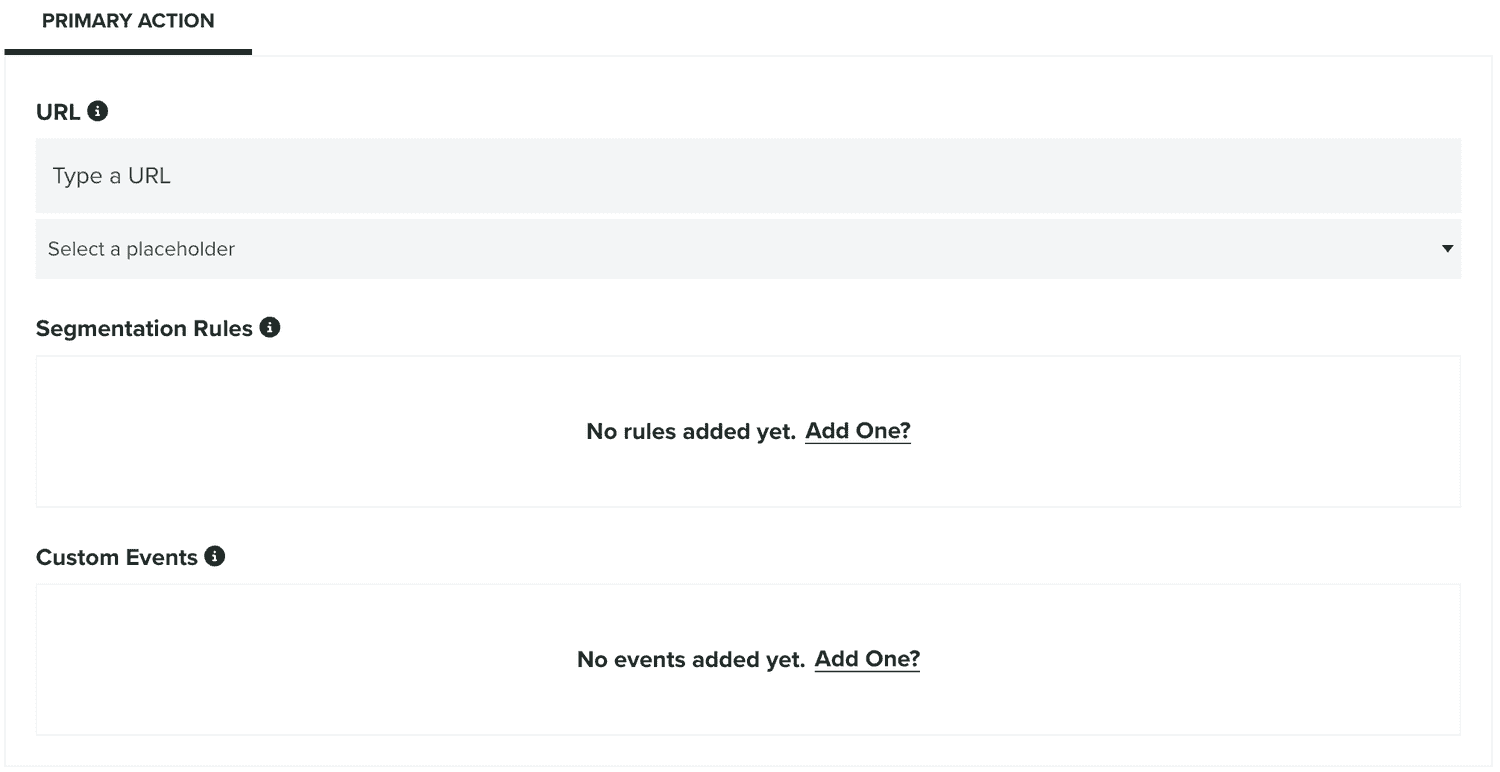
Additionally, if you want to redirect users to a view in your app or a page in your website, when they click the banner, you can provide a URL as the Primary Action:
In this tab, you can also see a preview of your in-app message content:
Card
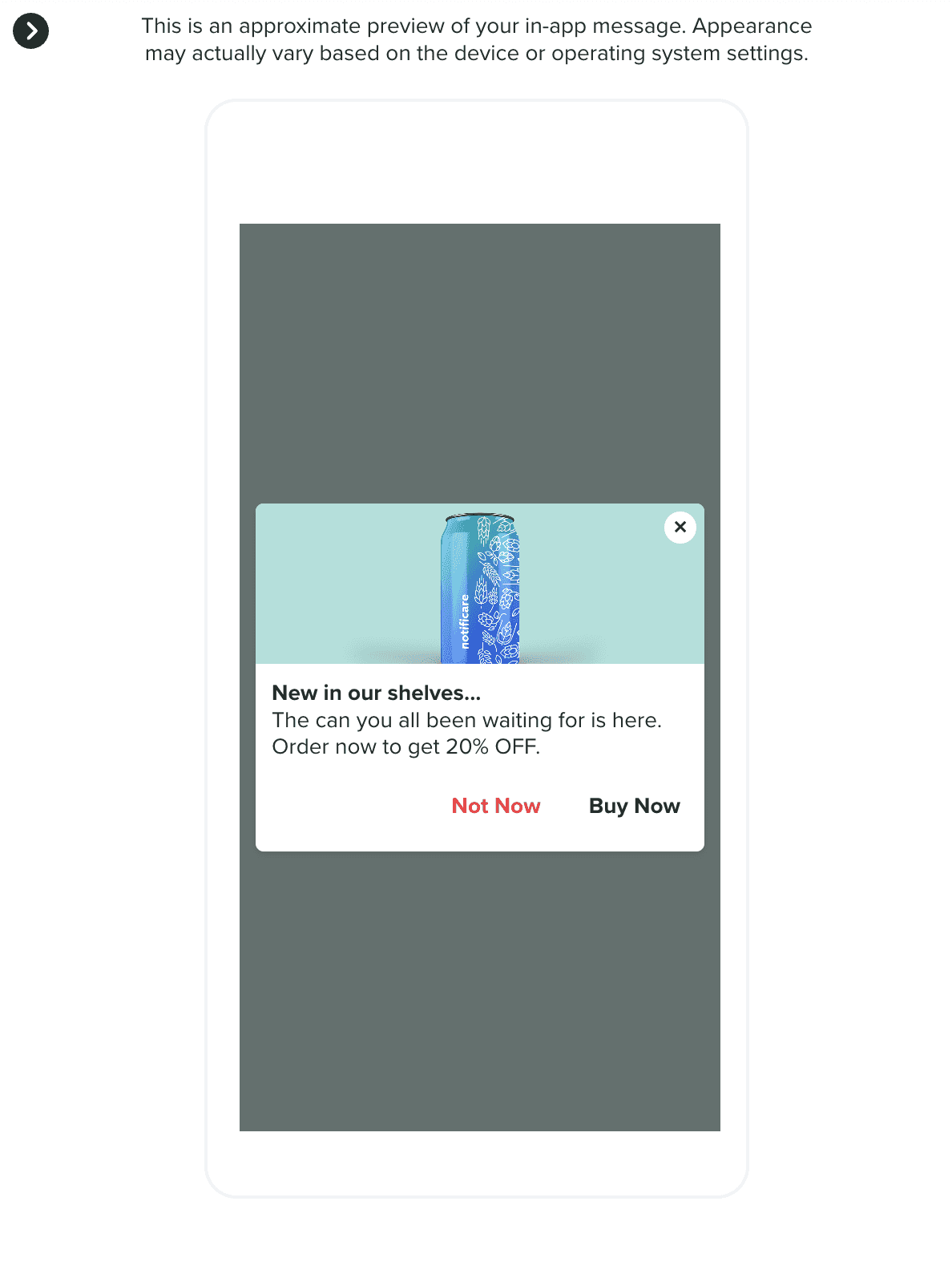
The card will allow you to create a more intrusive experience by overlaying a dialog card in the center of your app or website. You can upload an image, which will be displayed above the text in the card:
You can also provide a title for the banner in the following field:
And you must provide a message in the following field:
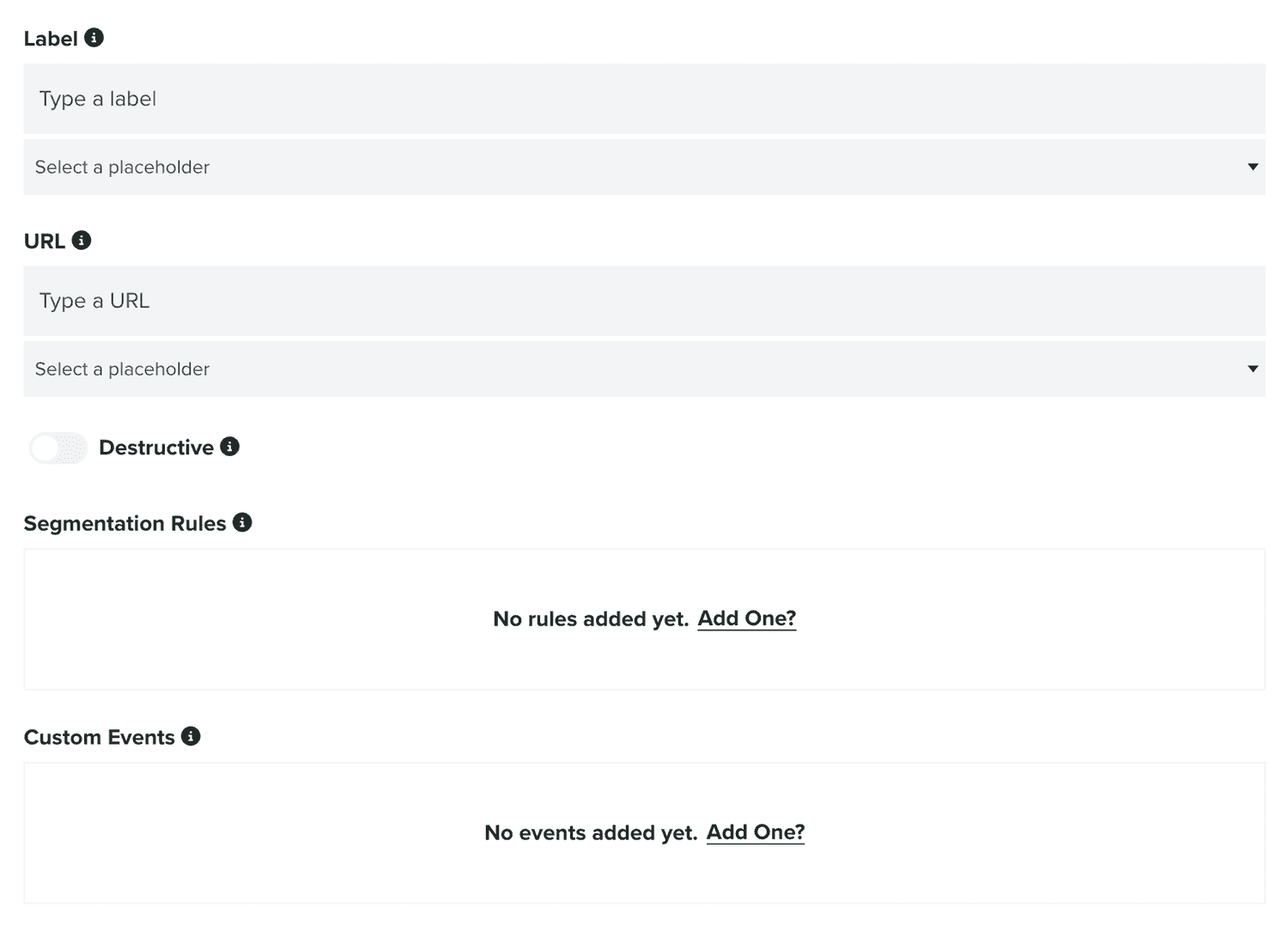
Optionally, a card can contain two actions, a primary and secondary action, both actions require a label and URL:
In this tab, you can also see a preview of your in-app message content:
Fullscreen
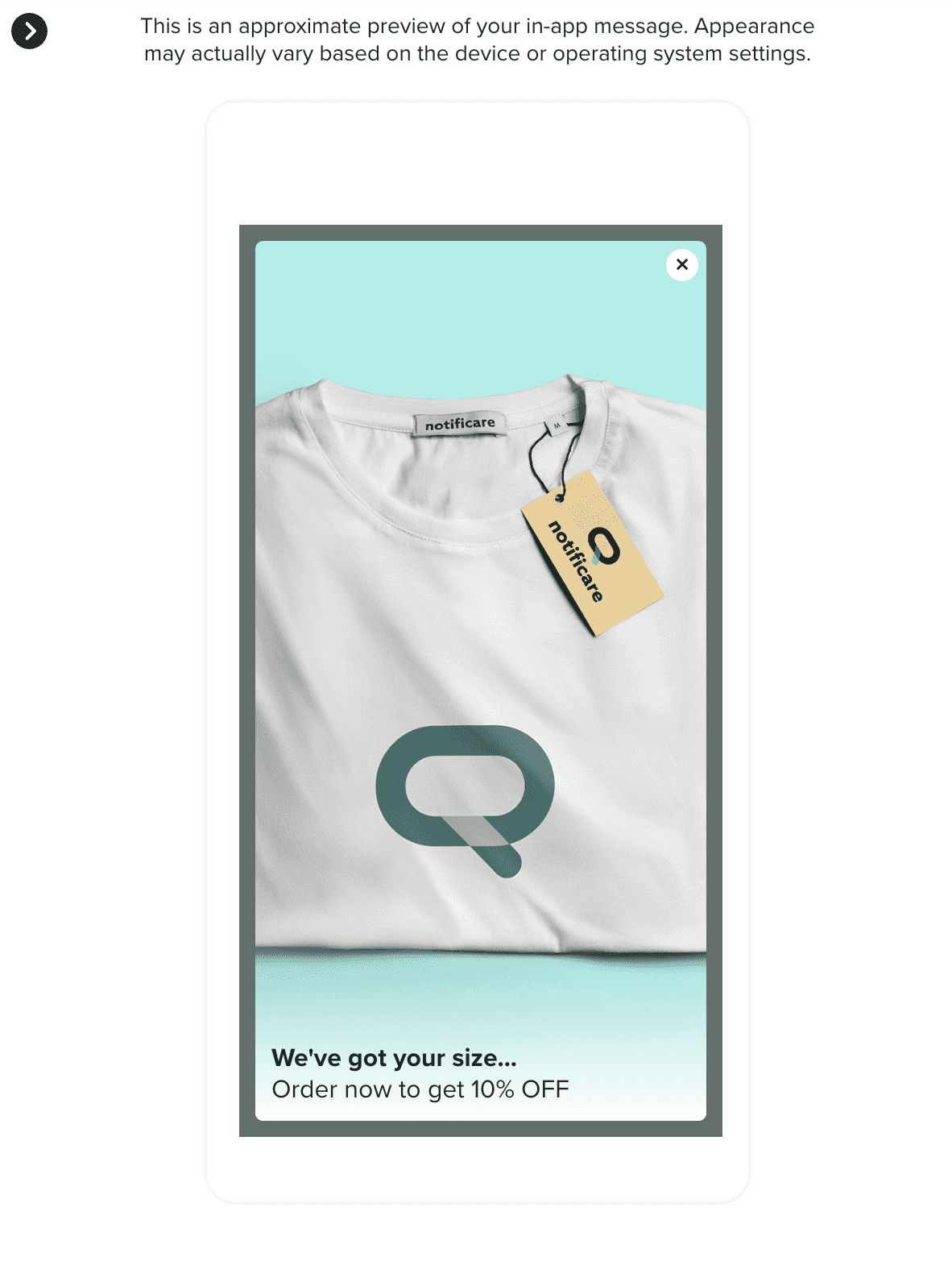
The card will allow you to create the most intrusive experience by overlaying a fullscreen window over your app or website. For this type, you should upload an image (it's the only mandatory field), which will be displayed as the background of that window:
Optionally, you can also upload an image to be used specifically in landscape mode:
You can also provide a title for this type in the following field:
And you can also provide a message in the following field:
Additionally, if you want to redirect users to a view in your app or a page in your website, when they click the window, you can provide a URL as the Primary Action:
In this tab, you can also see a preview of your in-app message content:
All these types can be localized in different languages. Notificare will automatically display the appropriate localized version, based on the language and/or region of the user. To do that, simply toggle the following option:

And provide different version of your content in one or more languages/regions. You can learn more about localized content in our guides located here.
Segmentation Rules & Custom Events
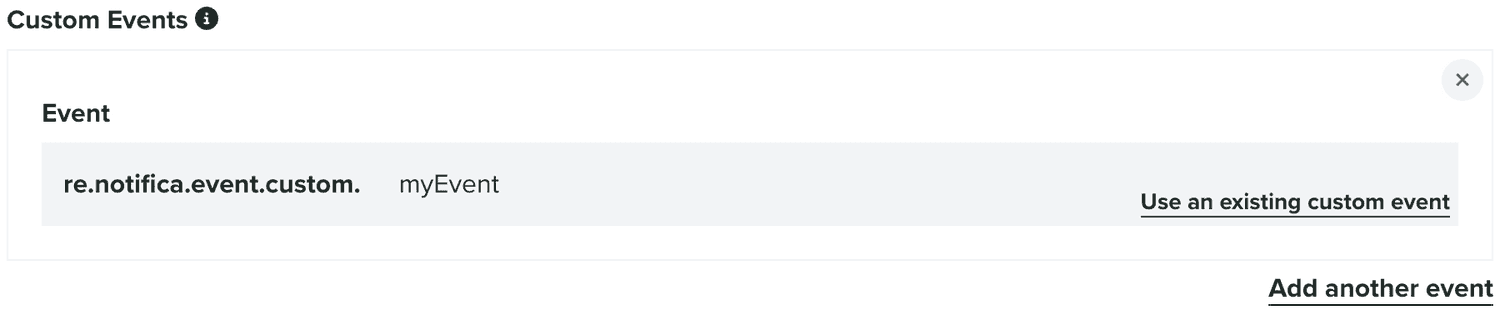
As you may have noticed, any action in these types also allow you to define segmentation rules or custom events. These will be executed whenever users click those actions. This will allow you to either automatically categorize users or register events which can later be used for follow-up campaigns.
You can add rules in the following section:
To learn more about segmentation rules, please read the guides located here.
Additionally, you can also define custom events in the following area:
You can also edit in-app messages by clicking on each entry on the list of in-app messages:

Additionally, you can deactivate in-app messages by toggling OFF the switch in each entry. In each in-app message, you can also quickly clone it, by expanding the Options menu and clicking in Clone:
You can also delete them, by expanding the Options menu and clicking in Delete: