
Getting started
Using the Actito Web library will allow you to quickly implement remote notifications, location services like geofencing and BTLE beacons, use actionable analytics or display content in your app.
Requirements
- An account in Notificare
An overview of the libraries
The Actito Web SDK is distributed as a single NPM package, actito-web, which exposes multiple feature-specific sub-packages.
We understand that not every app will take advantage of every bit of functionality provided by our platform. To help reduce your app's size and dependency footprint, you can cherry-pick which sub-packages you want to include in your app.
Installing through NPM
Using a module bundler like webpack or Rollup in your development environment is strongly recommended. Otherwise, you won't be able to take advantage of the modular API's main benefits, i.e., reducing your app's bundle size.
Install the SDK using your preferred package manager:
npm install actito-webOnce the package is installed in your project, you can include the necessary functions for your app.
import { } from 'actito-web/core';
import { } from 'actito-web/assets';
import { } from 'actito-web/geo';
import { } from 'actito-web/in-app-messaging';
import { } from 'actito-web/inbox';
import { } from 'actito-web/push';
import { } from 'actito-web/push-ui';
import { } from 'actito-web/user-inbox';

// CSS files
import 'actito-web/in-app-messaging/in-app-messaging.css';
import 'actito-web/push/push.css';
import 'actito-web/push-ui/push-ui.css';
The example above demonstrates the import of CSS files through JavaScript. However, you can adjust this to match the preferred import for your application stack. For instance, if you have global.css file, you can import our CSS files like the following:
@import "actito-web/in-app-messaging/in-app-messaging.css";
@import "actito-web/push/push.css";
@import "actito-web/push-ui/push-ui.css";
Installing through the CDN
You can also load Actito packages as script modules in browsers that support native ES modules.
<!DOCTYPE html>
<html>
<head>
  <link rel="stylesheet" href="https://cdn-mobile.actito.com/libs/web/v5/{{version}}/actito-in-app-messaging.css" />
  <link rel="stylesheet" href="https://cdn-mobile.actito.com/libs/web/v5/{{version}}/actito-push.css" />
  <link rel="stylesheet" href="https://cdn-mobile.actito.com/libs/web/v5/{{version}}/actito-push-ui.css" />
</head>
<body>
<script type="module">
  import { } from 'https://cdn-mobile.actito.com/libs/web/v5/{{version}}/actito-core.js';
  import { } from 'https://cdn-mobile.actito.com/libs/web/v5/{{version}}/actito-assets.js';
  import { } from 'https://cdn-mobile.actito.com/libs/web/v5/{{version}}/actito-geo.js';
  import { } from 'https://cdn-mobile.actito.com/libs/web/v5/{{version}}/actito-in-app-messaging.js';
  import { } from 'https://cdn-mobile.actito.com/libs/web/v5/{{version}}/actito-inbox.js';
  import { } from 'https://cdn-mobile.actito.com/libs/web/v5/{{version}}/actito-push.js';
  import { } from 'https://cdn-mobile.actito.com/libs/web/v5/{{version}}/actito-push-ui.js';
  import { } from 'https://cdn-mobile.actito.com/libs/web/v5/{{version}}/actito-user-inbox.js';

  // more code ...
</script>
</body>
</html>
We recommend using a pinned version when including our libraries and managing their updates as necessary. However, you can also use the latest placeholder to always be up-to-date.
import { } from 'https://cdn-mobile.actito.com/libs/web/v5/latest/actito-core.js';Note: When using Google Tag Manager to include our libraries, make sure to enable support for document.write.
Setting up the configuration file
To establish a connection between your application and Actito, you must download a configuration file and serve it at the root of your web app (/actito-services.json).
To do so, open your Notificare application in the Dashboard and navigate to the App Keys section via Settings > App Keys.
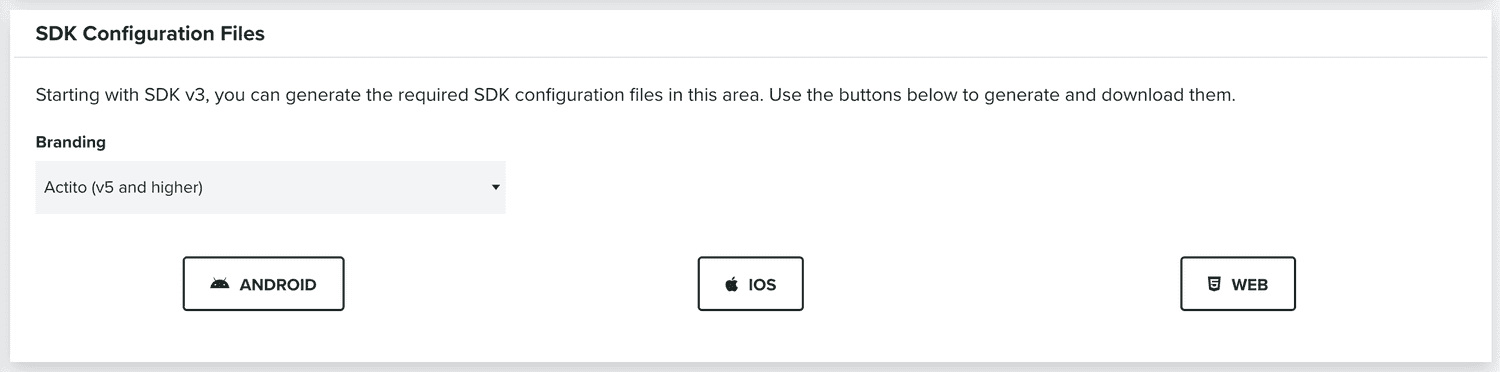
It is recommended that you create at least two different apps in Actito using separated environments for development and production. For each app you will have a different set of keys, resulting in two different configuration files.
Note: To integrate the SDK on your website, your domain must be explicitly authorized. To do so, open the Dashboard and navigate to the Website Push section via Settings > Services > Website Push and configure the Allowed Domains for your application.
For more information, refer to the corresponding guide.
Launching Actito
Before using any Actito features, the SDK must be initialized by invoking the launch() method. This process ensures that the Actito SDK is fully set up and ready to operate. Most SDK functionality will remain unavailable until this initialization occurs.
It is recommended to invoke the launch on every page of your application:
import { launch } from 'actito-web/core';

// Launch Actito! 🚀
await launch();
Launching the SDK automatically registers the device with Actito. If your application requires user consent before collecting or registering device information, you may delay the initial launch until consent is granted.
Otherwise, ensure that launch() is called when the page loads to avoid missing important updates.
Unlaunching Actito
If your application needs to permanently disable Actito functionality, you can invoke the unlaunch() method. This method completely removes all Actito-related functionality and deletes any previously registered device information, both locally and remotely.
While this action is generally discouraged, it may be required in certain cases — such as when a user requests permanent account deletion or data removal — to ensure compliance with privacy and data protection regulations.
Actito.unlaunch()⚠️ Important: Once
unlaunch()is invoked, all associated data is permanently destroyed and cannot be recovered. Any subsequent calls to Actito APIs will fail until the SDK is reinitialized using thelaunch()method.