
Notification Service Extension
Starting with iOS 10, Apple introduced the Notification Service Extension, which allows apps to process incoming push notifications before they are displayed to the user.
By implementing this extension, you can:
- Enrich notifications with rich media (images, videos, audio).
- Modify notification content dynamically before display.
- Perform custom client-side processing of push messages.
This guide walks you through creating and configuring a Notification Service Extension to enhance your notification experience.
Adding a Notification Service Extension
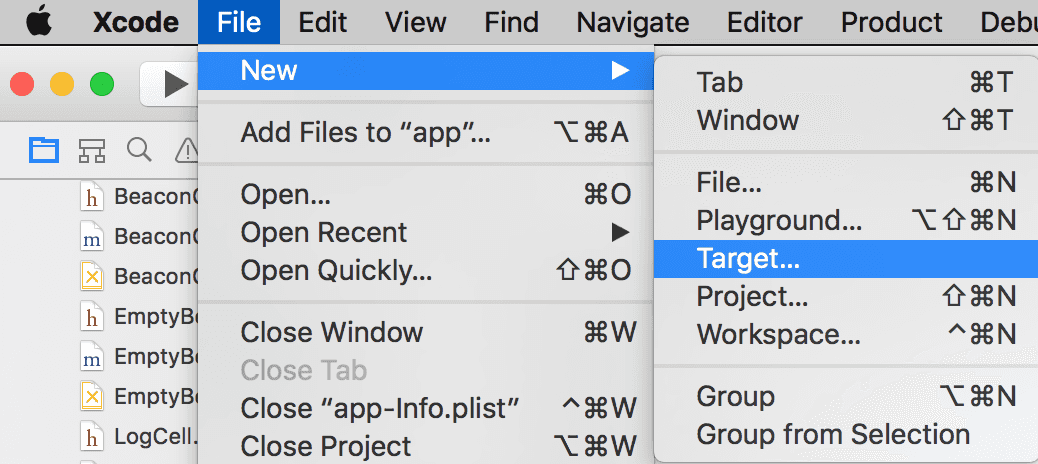
To add the Notification Service Extension to your project, add a new target:
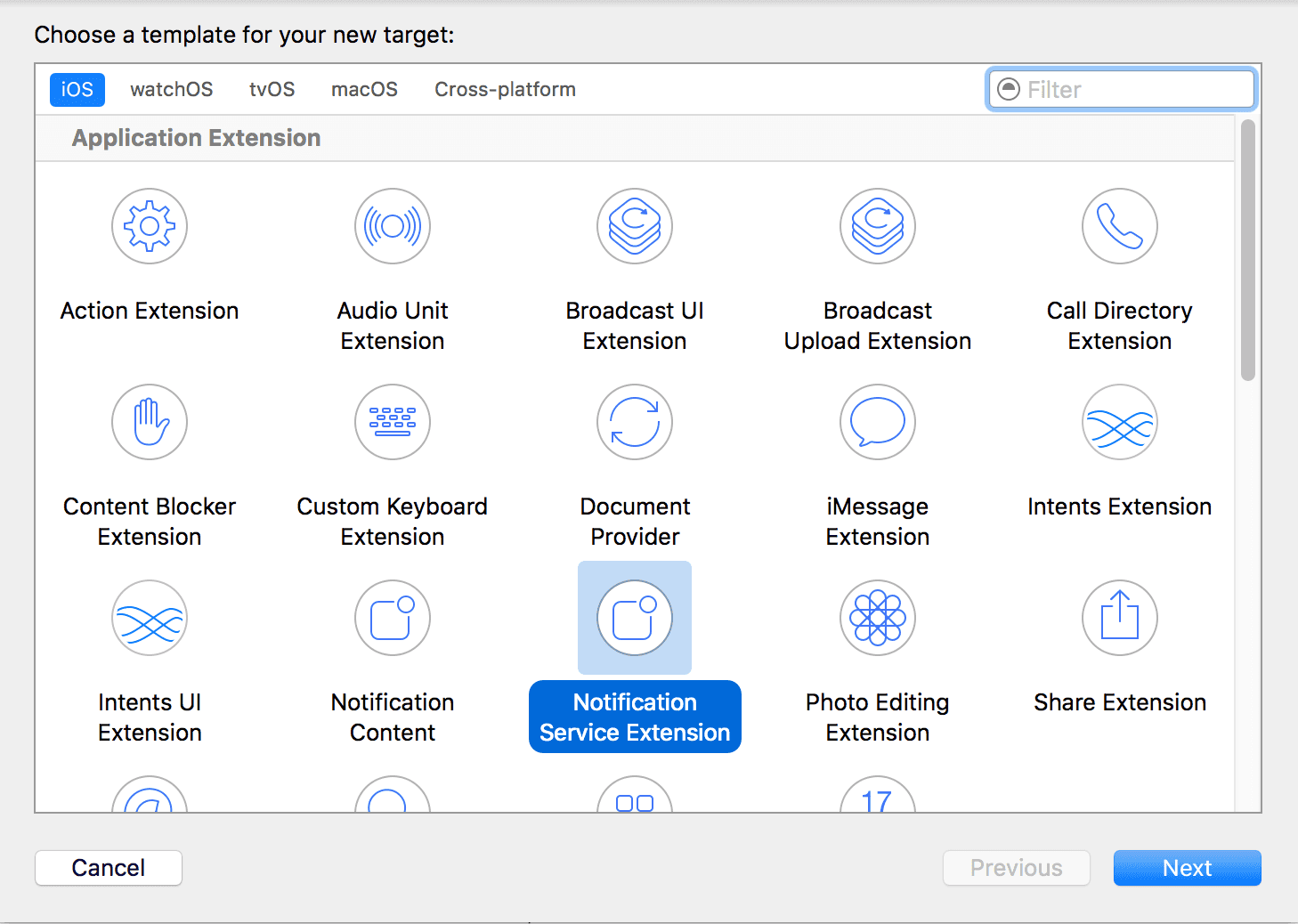
In the template selector, choose Notification Service Extension and click Next.
Provide a Product Name for the extension (e.g., NotificationServiceExtension) and click Finish.
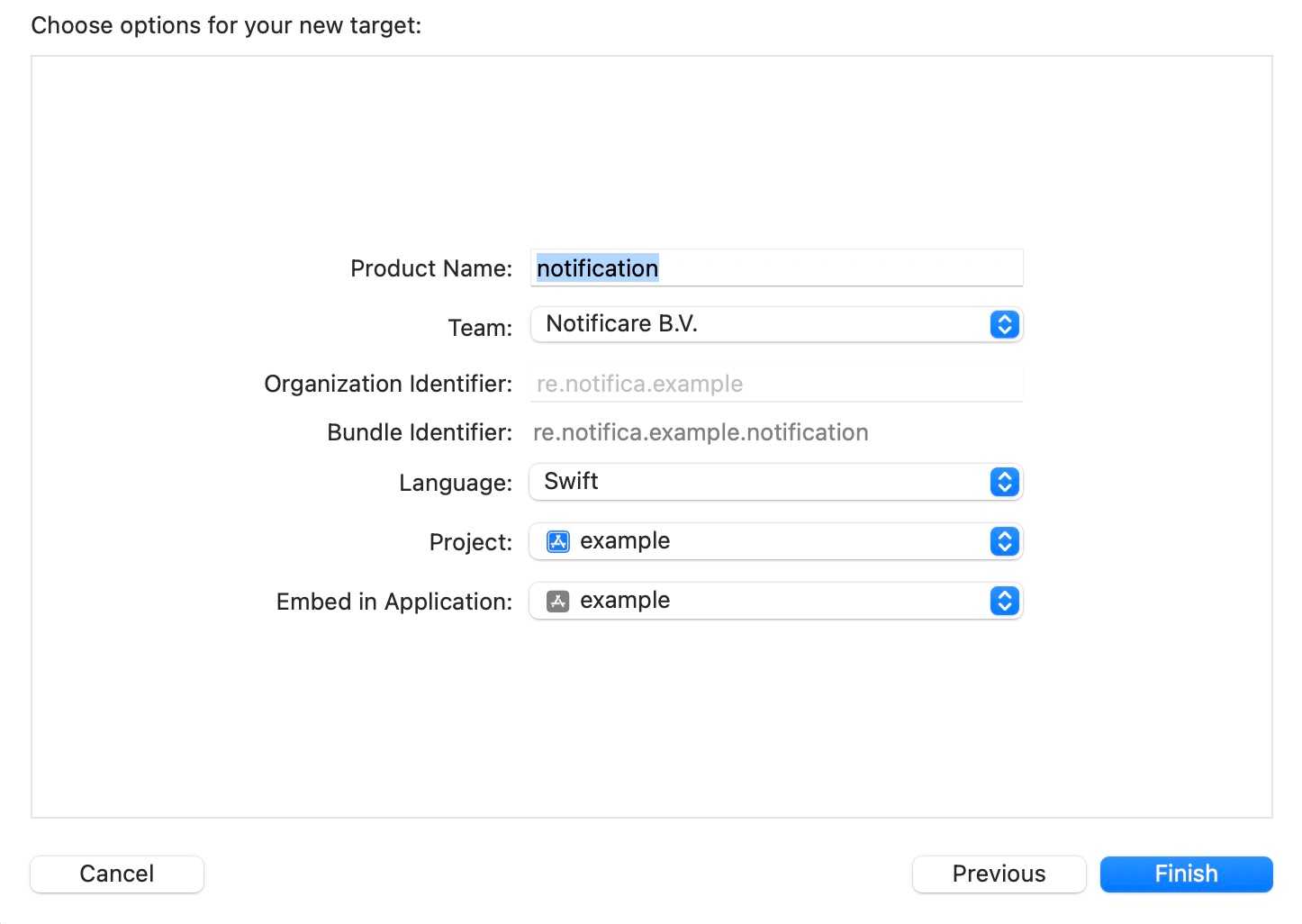
This is going to add a new folder to your project with the new extension files.
Using Swift Package Manager, add the ActitoNotificationServiceExtensionKit dependency to both your main app target and the new notification service extension target, then proceed with its implementation.
Implementing the Extension
In the newly created implementation file, add the following code to the didReceive method to enable handling of rich notifications:
import ActitoNotificationServiceExtensionKit

override func didReceive(_ request: UNNotificationRequest, withContentHandler contentHandler: @escaping (UNNotificationContent) -> Void) {
    ActitoNotificationServiceExtension.handleNotificationRequest(request) { result in
        switch result {
        case let .success(content):
            contentHandler(content)

        case let .failure(error):
            print("Failed to handle the notification request.\n\(error)")
            contentHandler(request.content)
        }
    }
}
Once your implementation is complete, you can include media attachments in your notifications by:
- Uploading an image in the Lock Screen Media field when composing a message in the dashboard.
- Including the attachments property in your notification payload when sending via the REST API.
⚠️ Important: To ensure reliable delivery, keep media files below 300 KB. iOS allows limited time for the extension to download attachments, and larger files may not complete in time on slow networks.
Configuring App Transport Security (Optional)
Since the Notification Service Extension runs as a separate target, it maintains its own Info.plist configuration.
By default, iOS blocks non-secure (HTTP) network requests in extensions.
If your lock screen media is hosted over an insecure protocol (http://), you must declare an App Transport Security exception in the extension’s Info.plist.
