
Share App
If you've already enrolled in a paid subscription, you are allowed to share your apps with others. These invites will be sent by email and can be accepted by an existing account or by creating a Free account which will give invitees full access to your apps without costs. Access to this area also depends on the access role your account has.
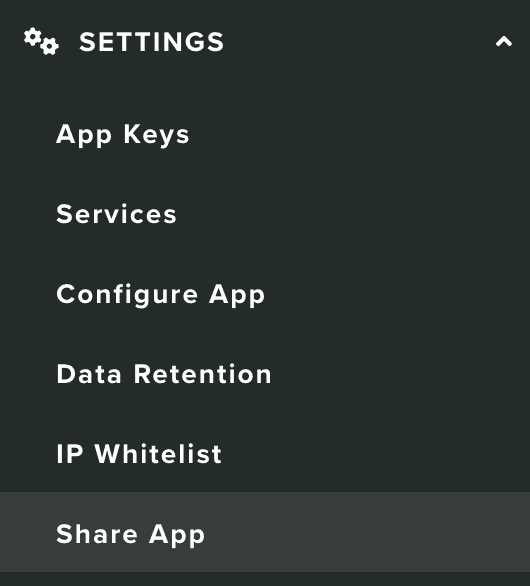
Under the Settings menu, you should click in Share App to access this area:
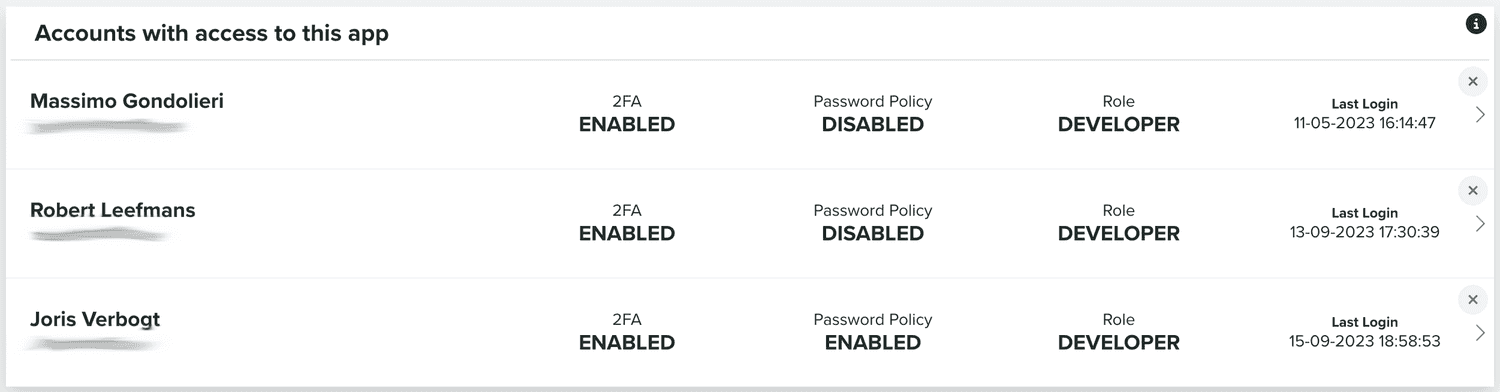
In this page you will find two different lists. One with the accounts who have access to the app:
And another with the pending invites:

You can also create new invites by clicking in the button below:

This will open a window as follows:
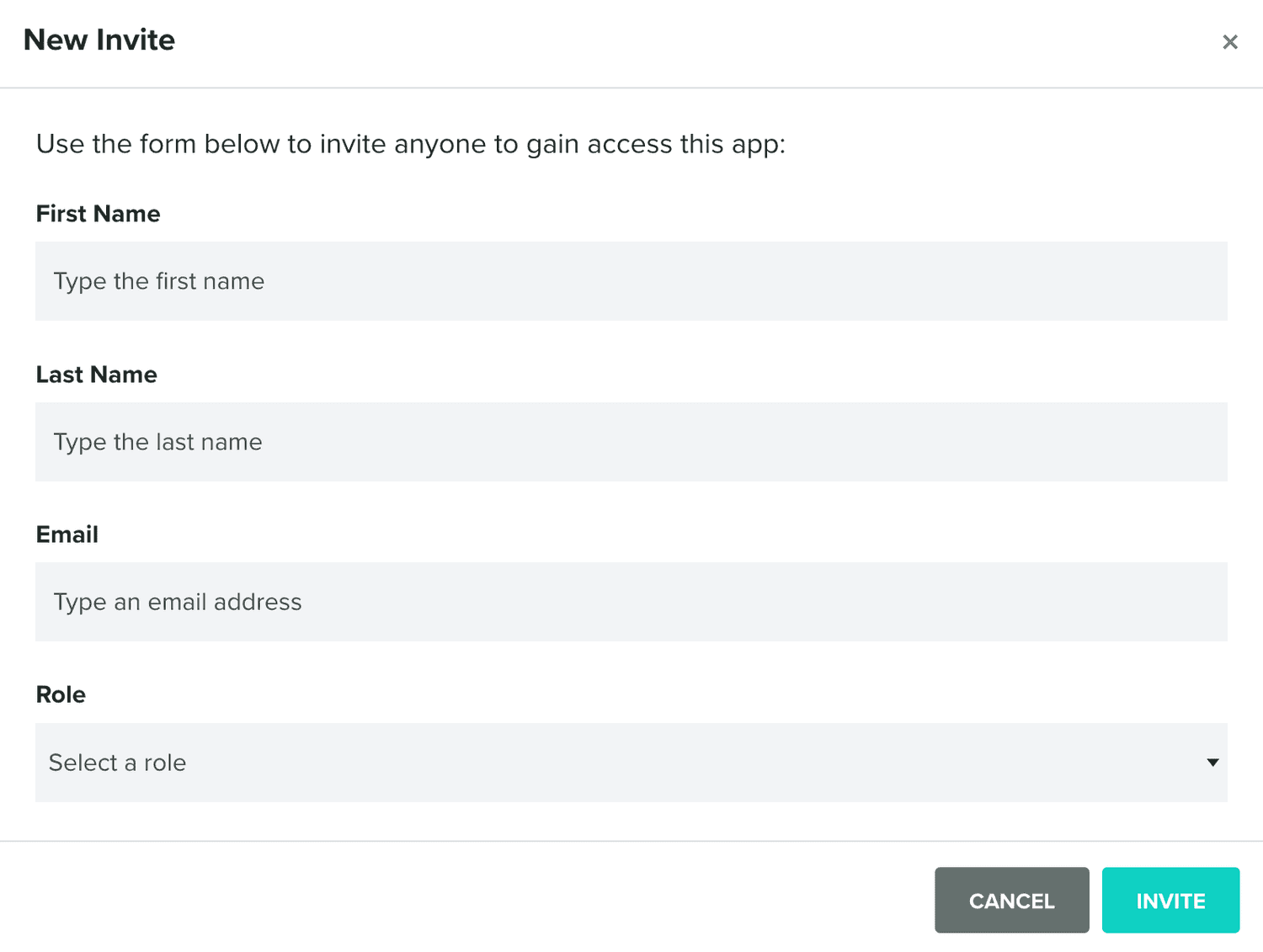
You should provide all the data required, including the access role you desire for your invitee.
You can also delete pending invites by clicking in the button in the top right corner:

When submitted, invitees will receive an email as follows:
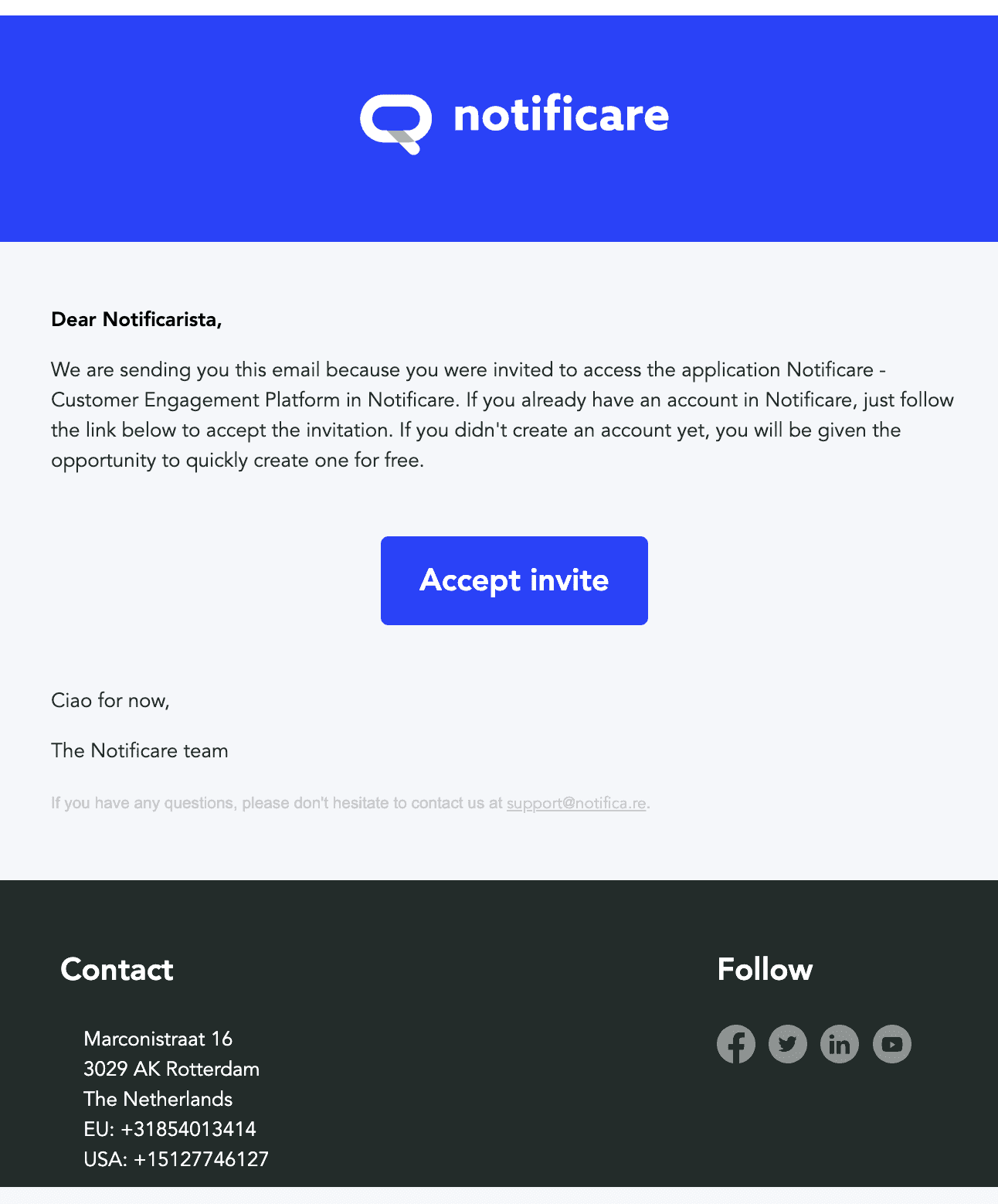
And clicking in the Accept Invite button, will take them to the following page:
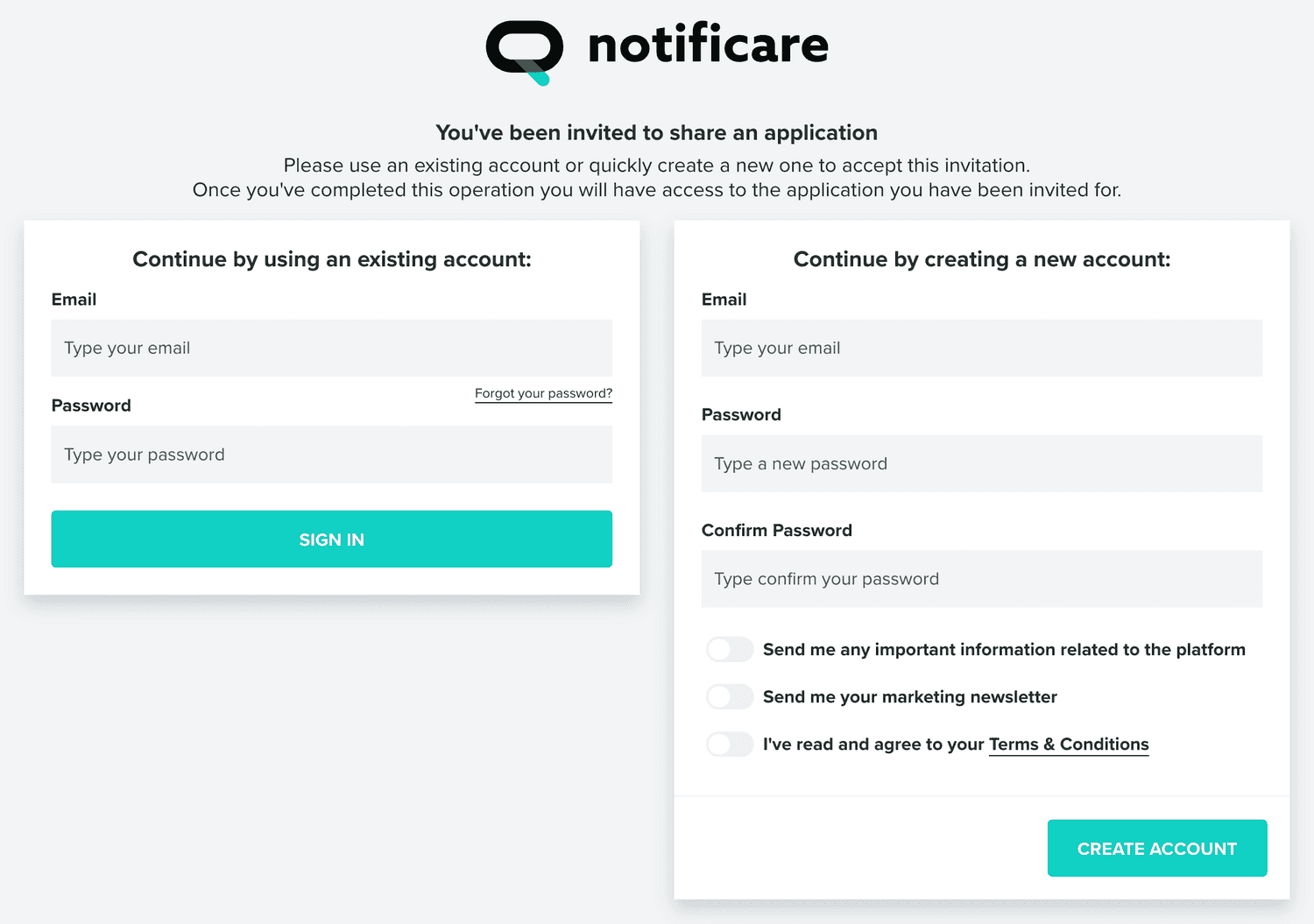
Where the invitee has 2 options, either sign in with their existing account to accept the invite:
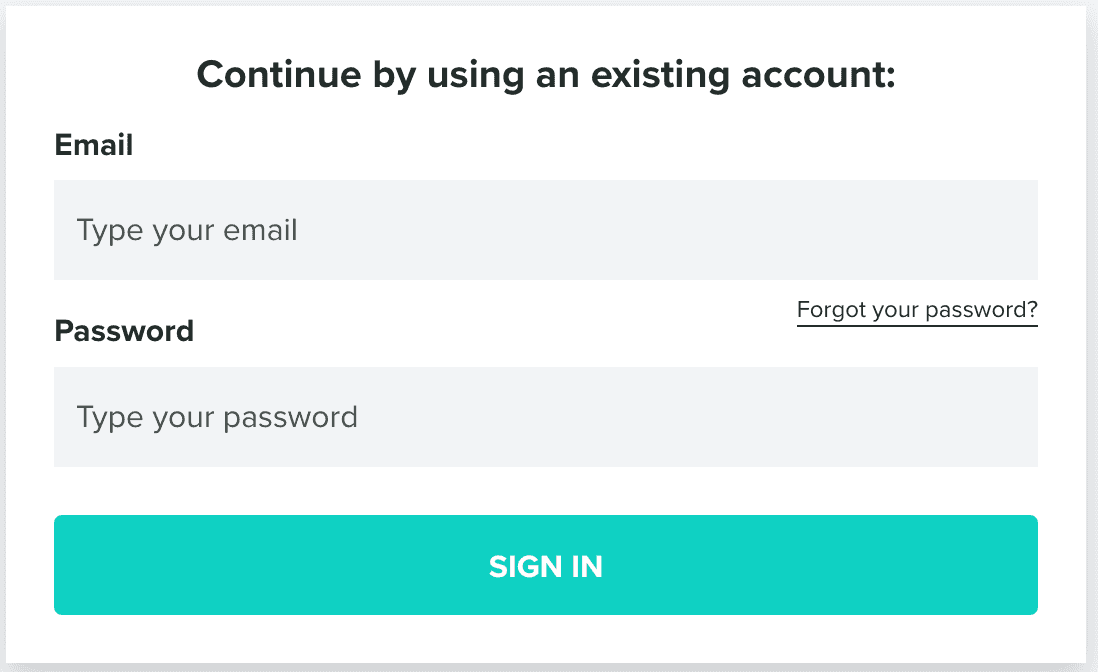
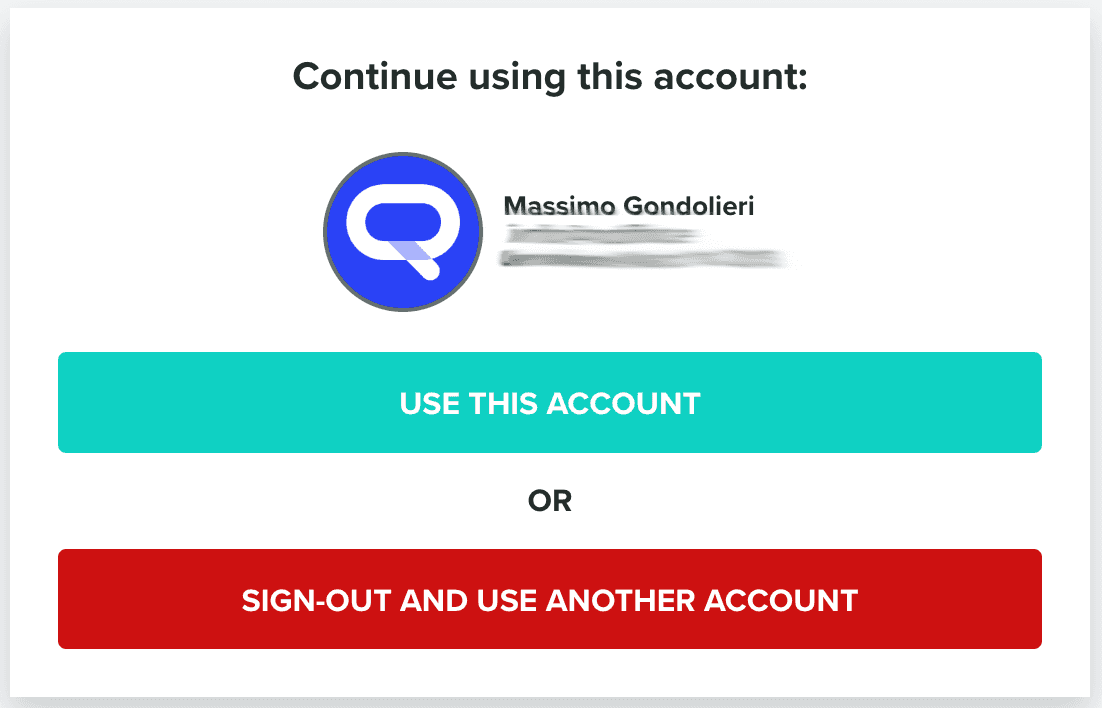
Which will be displayed as follows, if the user has an active session:
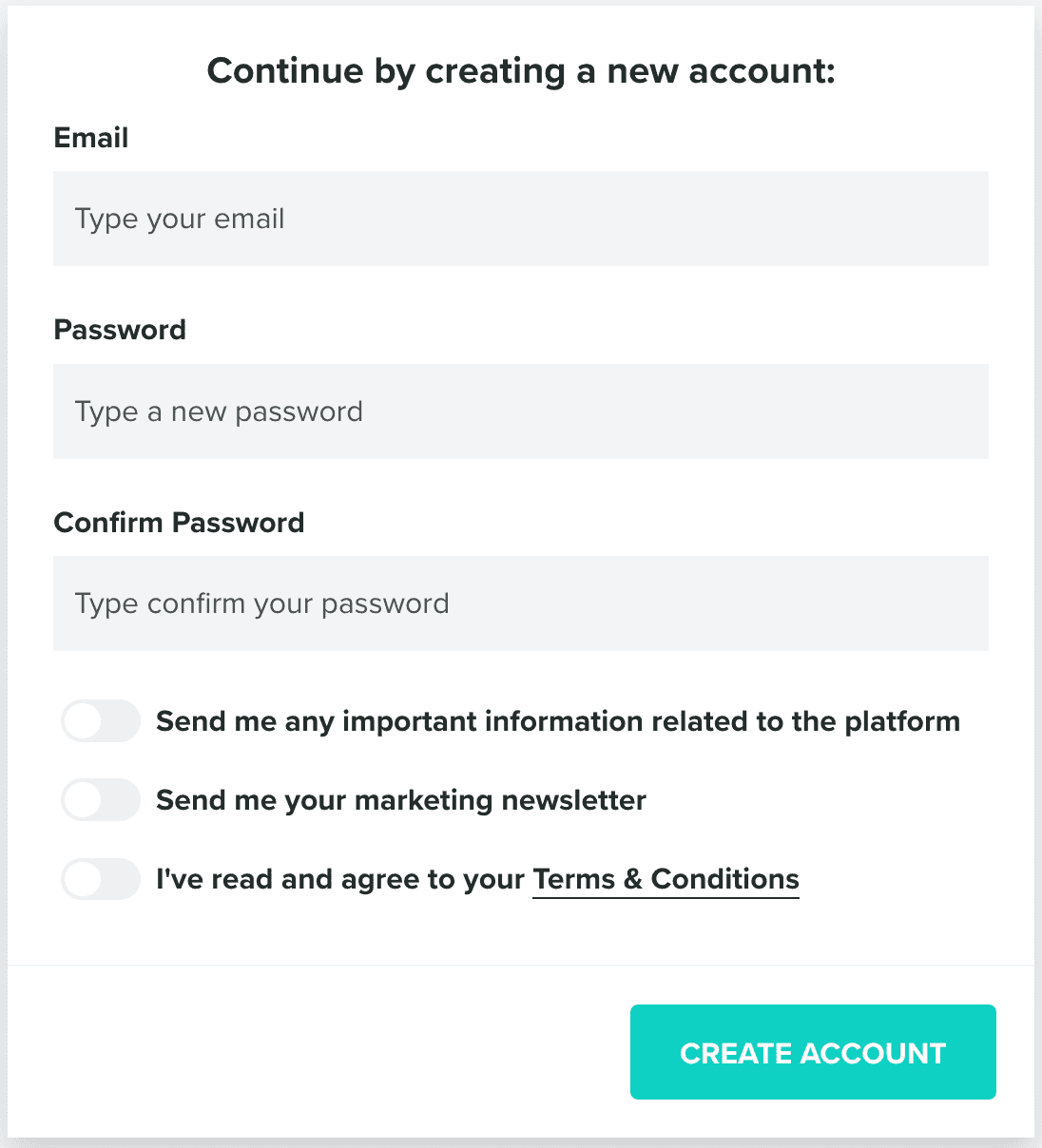
Or by creating a new account, free of cost, using the section below:
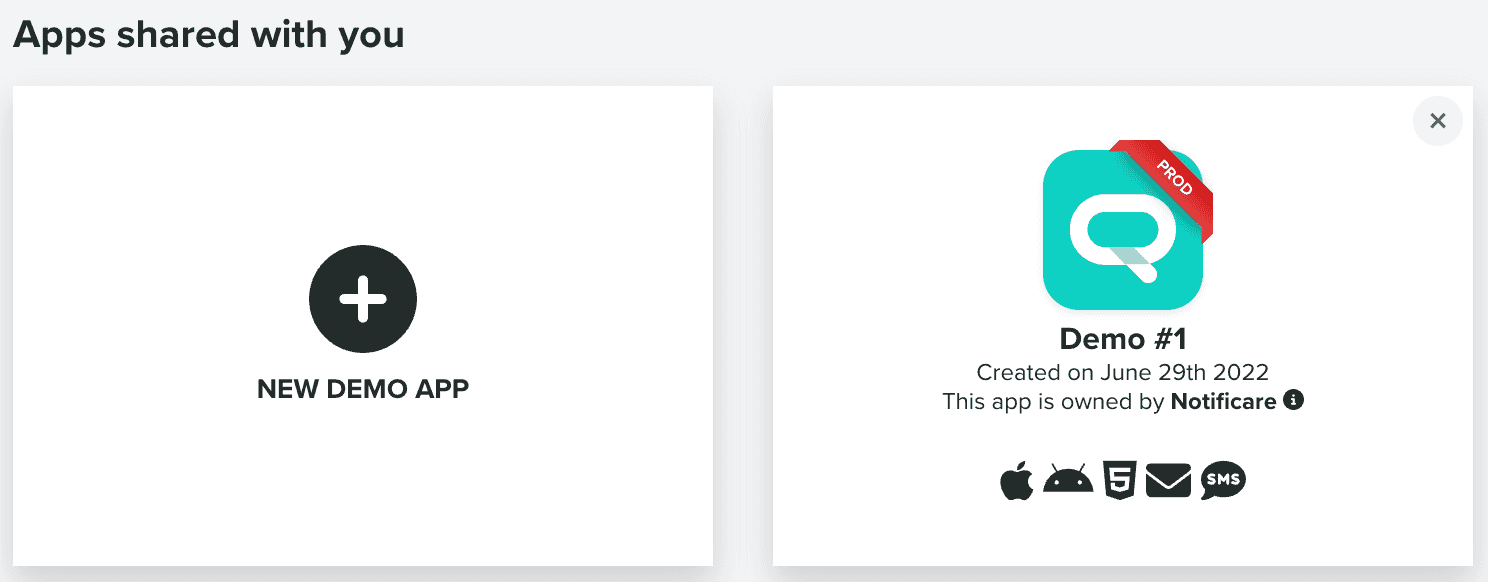
Whatever option they choose, once they sign in after accepting this invite, the app will be displayed under the Apps shared with you section:
They will also move from the Pending Invites list to the Accounts with access to this app list:

You can always revoke access for these accounts, by clicking in the button in the top right corner. Clicking in each of these accounts will open this window:
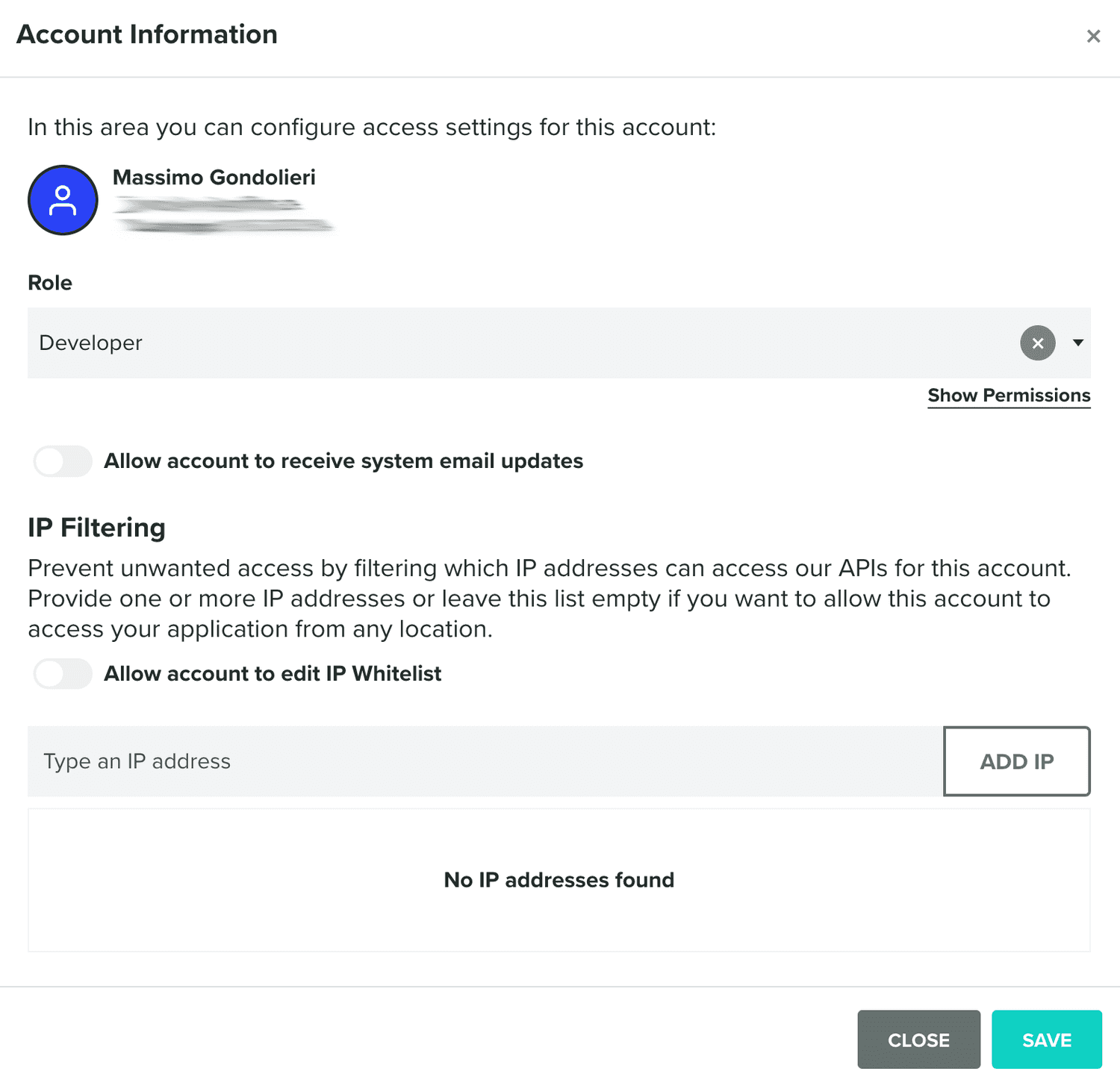
Where you can edit some important settings for each individual account you share your apps with. For example, you can change the access role for the account:

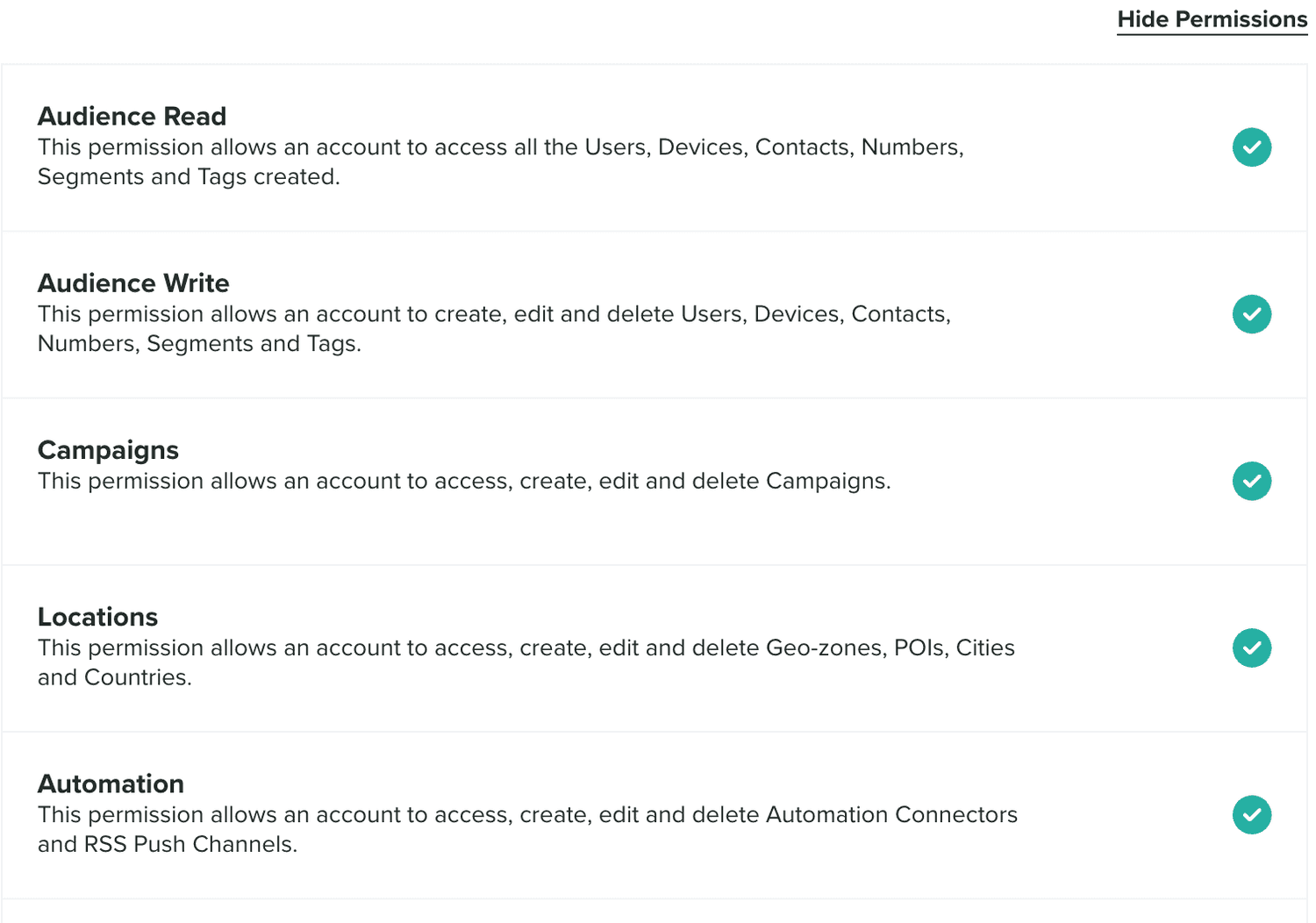
You can see the list of permissions for each role by clicking in the following link:

Which will display a list as follows:
You can also include an account in the list of email addresses that should receive all the system email updates the app generates:

And you can also define the IP Whitelist for this account too:
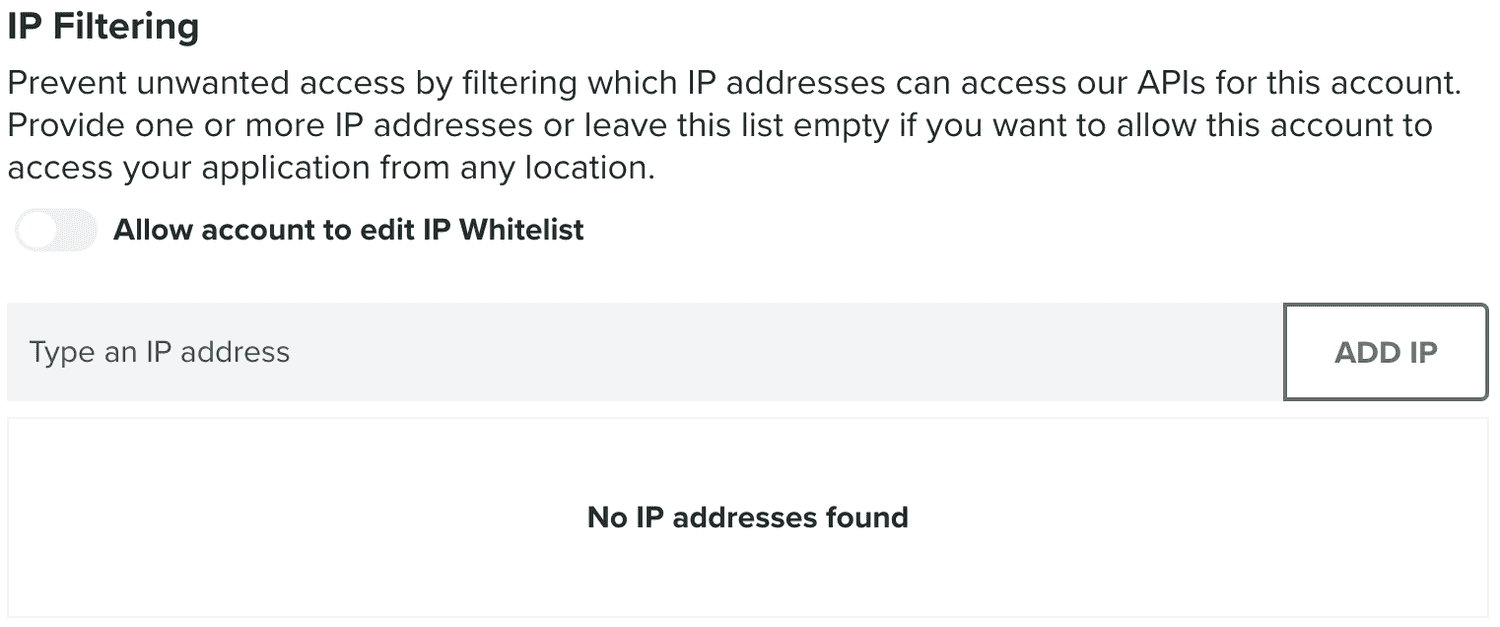
Sometimes, you might want to delegate IP whitelist management to the account instead. You do that by toggling the following option:

When you do this, the account will have access to this area.