A/B Testing
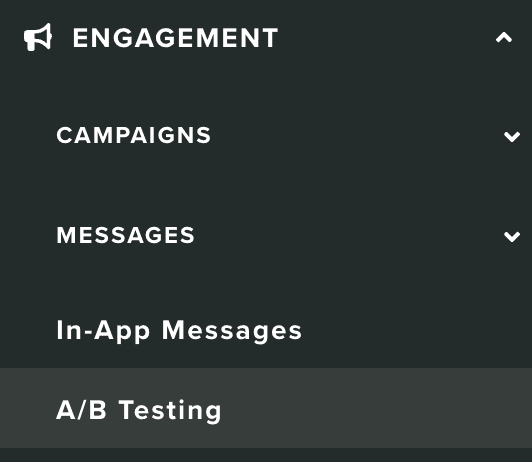
In this area you can create A/B/Multivariate tests for push, email and SMS messages. You will need to expand the Engagement menu and click in A/B Testing:
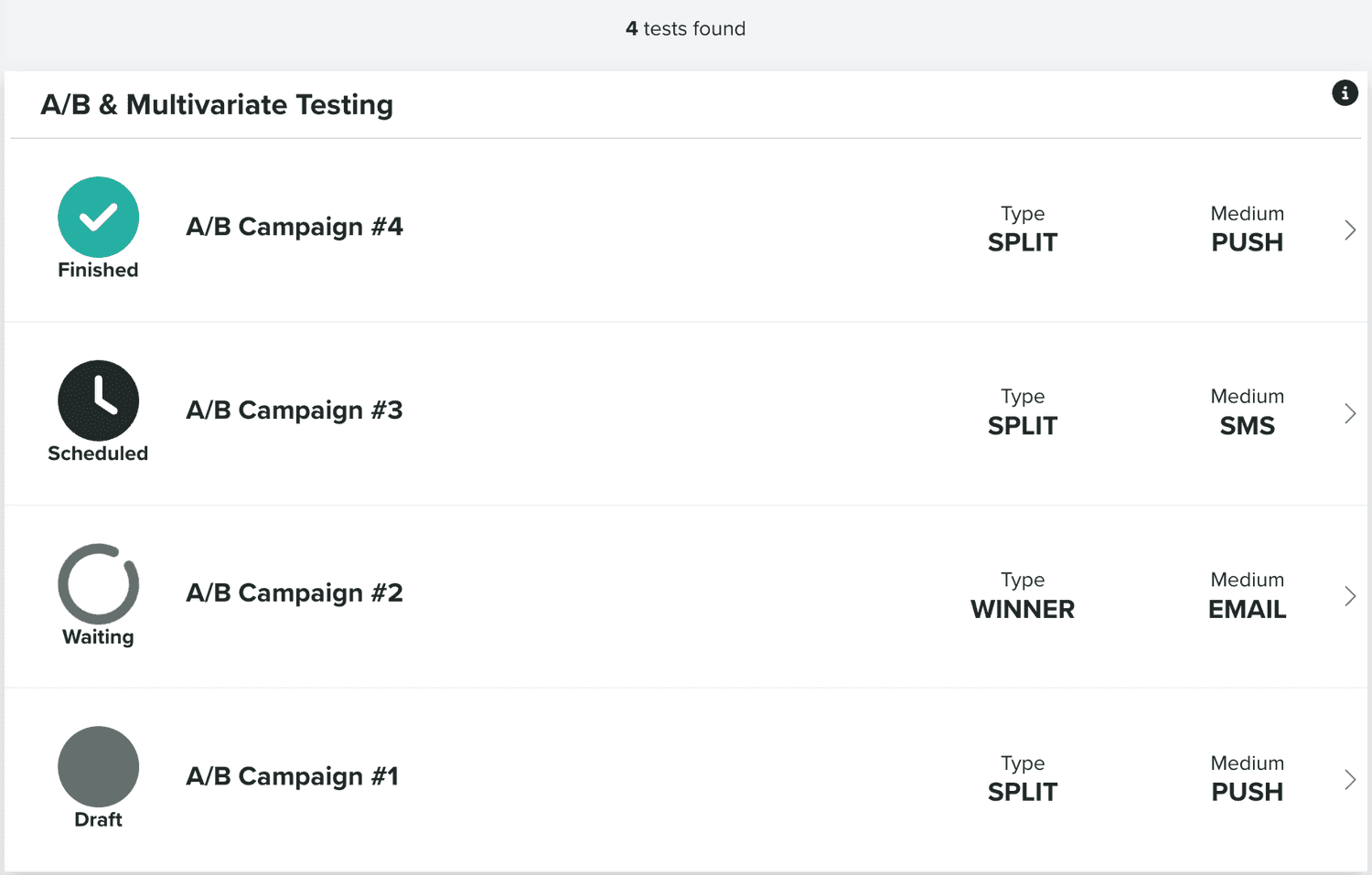
In this area, you will find all the tests you've created:
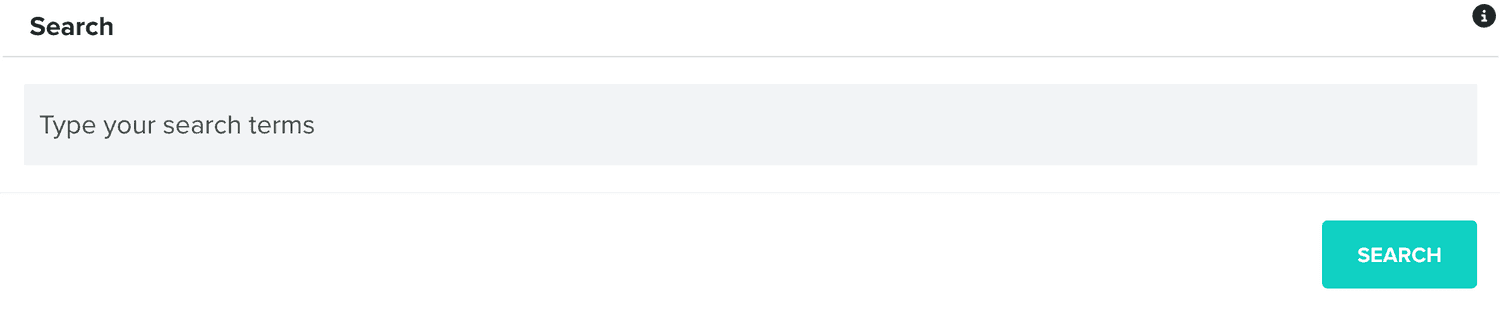
You can also search your tests using the following section:
In each entry in this you will notice that tests can have different states. For example, when you create a test, it will be assigned as a draft:

If you've scheduled, but it didn't start yet, it will be in this state:

Additionally, if your test is already sending but waiting for results (usually if you use Winner), it will be in the following state:

Finally, if your test already finished, you will see the following state:

Clicking in any of these entries will take you to a new area where you can either edit your test or see its results.
You can also create a new test by clicking in the following button:
Setup
In this tab you will need to provide some basic configuration for your test:
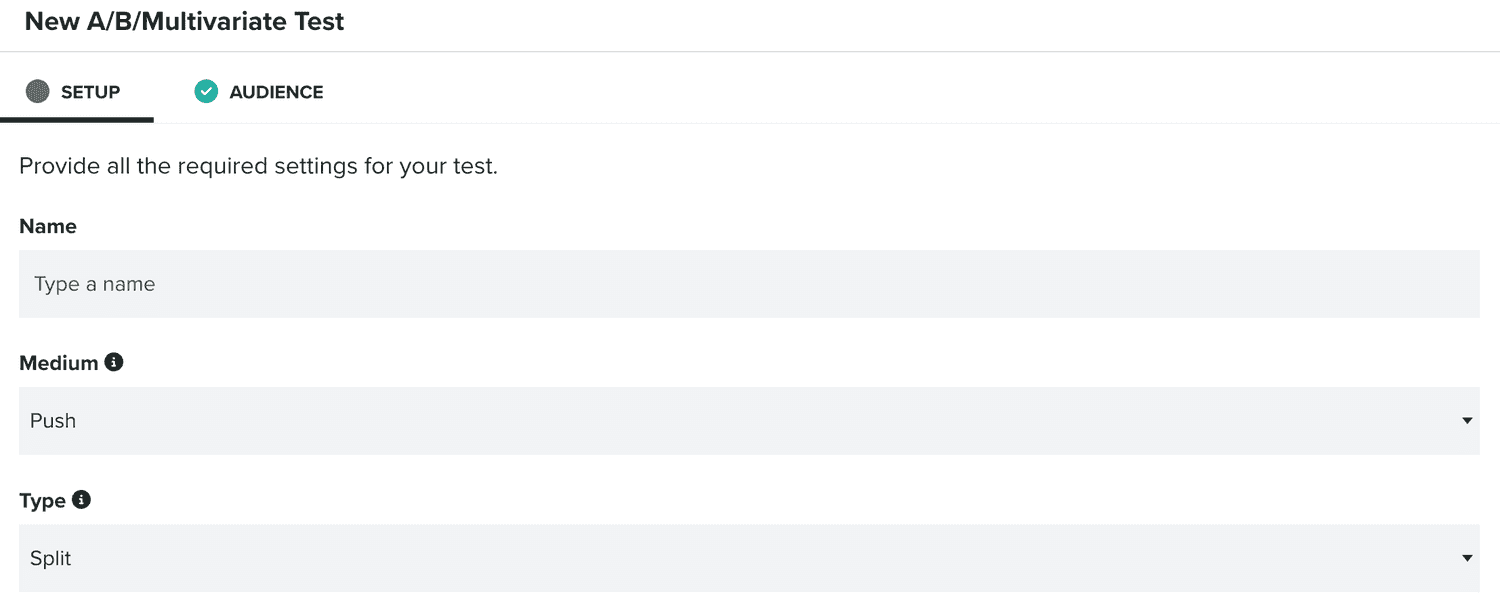
Namely, you will need to provide a name:

You will have to select the medium, Push, Email or SMS:

And one of two types, Split or Winner:

Split will basically divide your selected audience equally by the number of variations you provide, while Winner, will require a few more information:

For this type, you will need to select the size of your Sample Group (10% by default), the Wait Interval (60 minutes by default) and which Conversion Metric you care about the most (Open, Unique Open, Replies or Unique Replies). The winner content will be the content variation that better performances, among the sample group, on the metric you've selected. We will gather this results until the end of the wait interval and send the winner content to the remaining audience you've selected.
Audience
In this tab, you can select the audience you want to reach in this test.
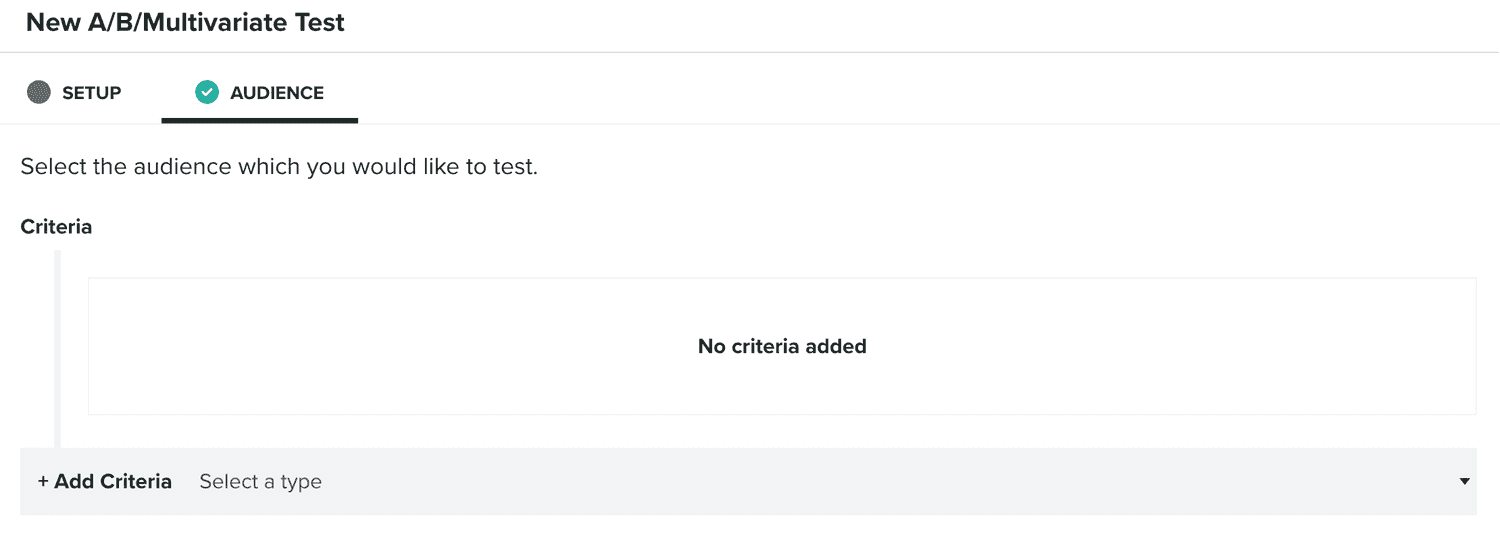
By default, we will use all your users, but you can use our criteria component to make fine-grained selections. To learn more about criteria, please read the guides located here.
Every change you make to your selection, we will display an estimation in the following section:

Content
This tab will only be visible, after you've created a test. This is where you will add two or more variations of your content:
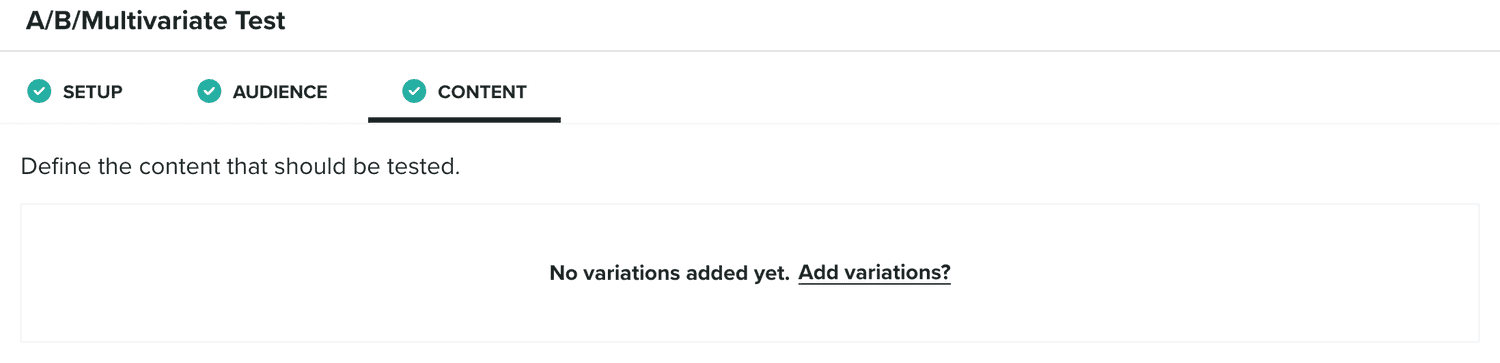
You can add up to 10 different variations:
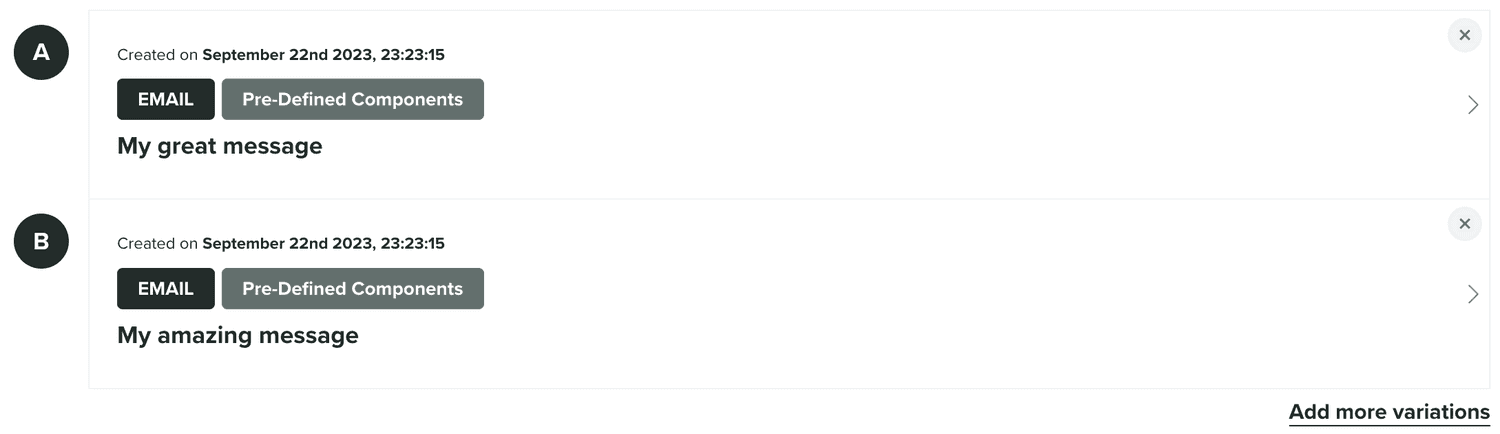
You can add more by clicking the Add more variations link, which will open a window as follows:
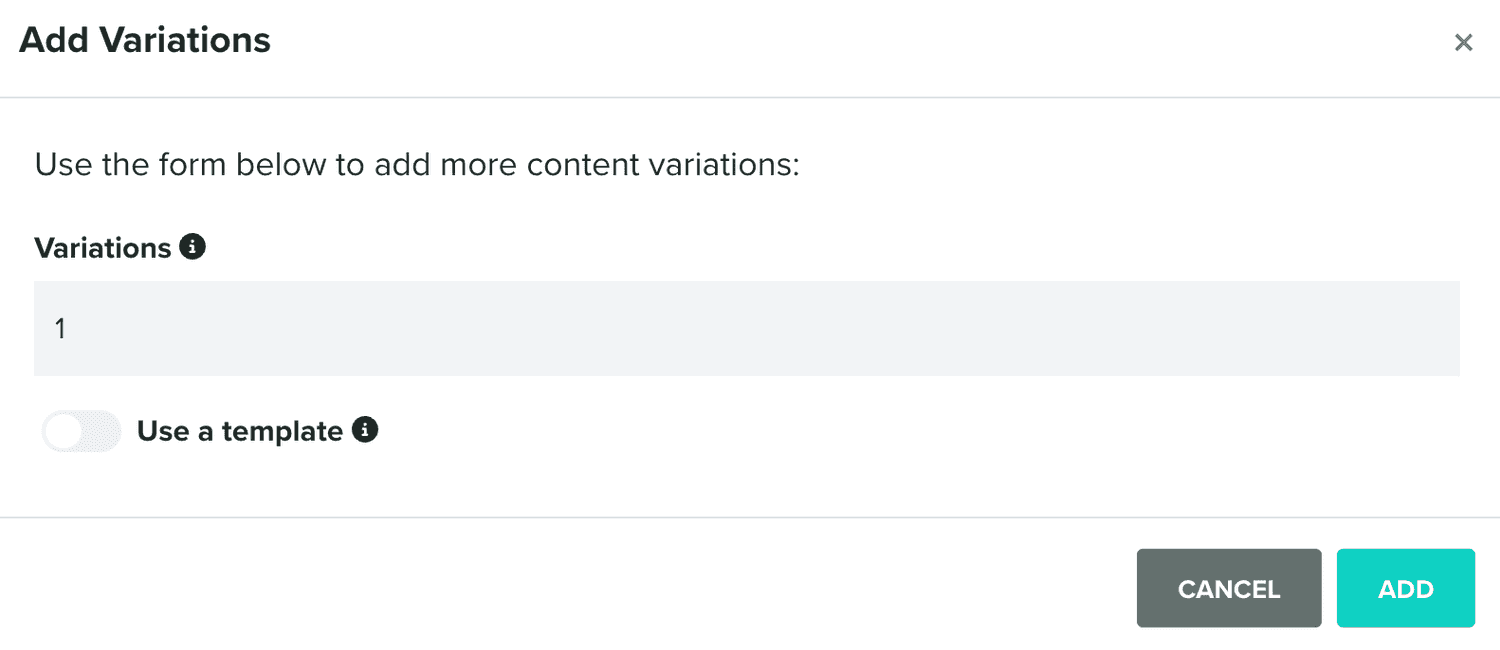
Where you can select the number of variations you want to add. Additionally, you can select an existing template to bootstrap the content of your variations. If none is provided we will simply use a default text, which you can edit later. You can also delete variations using the button in the top right corner of variation. Clicking on each variation will let you edit the content of your message.
You can at any moment, save your changes or send your test, using the buttons below:
If you choose to send your test, you will be prompted with the following window:
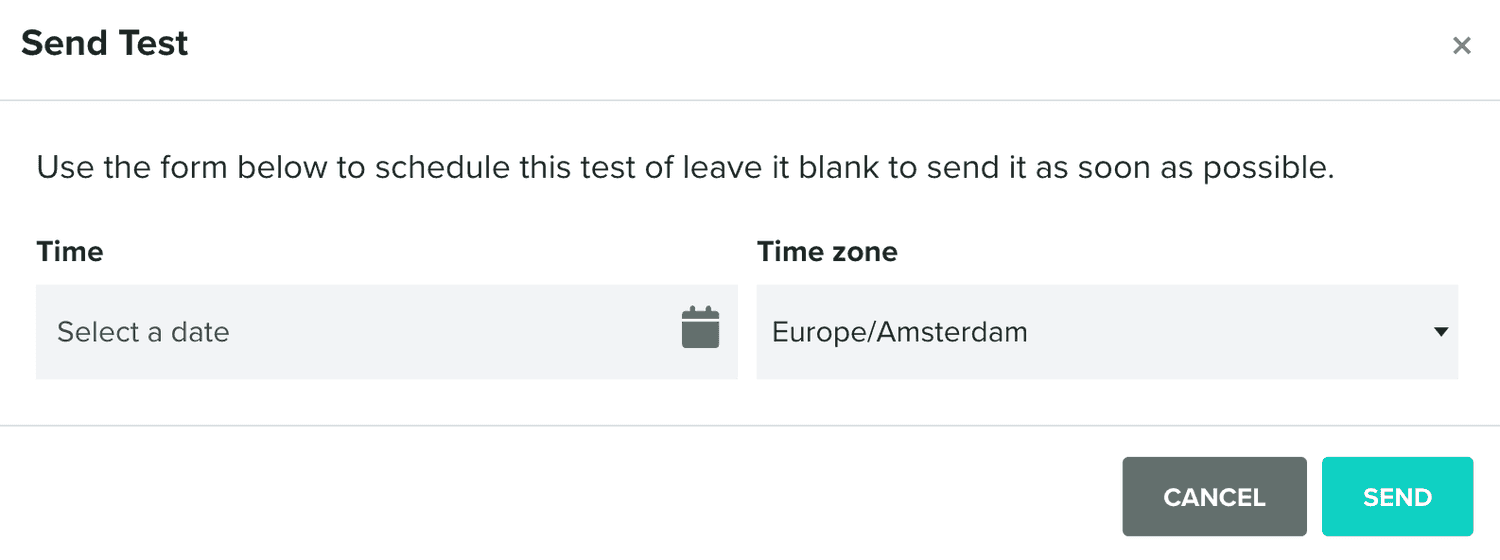
If you do not provide a date, we will send the test immediately. If you do provide one in the future, you can then still change your test contents further.
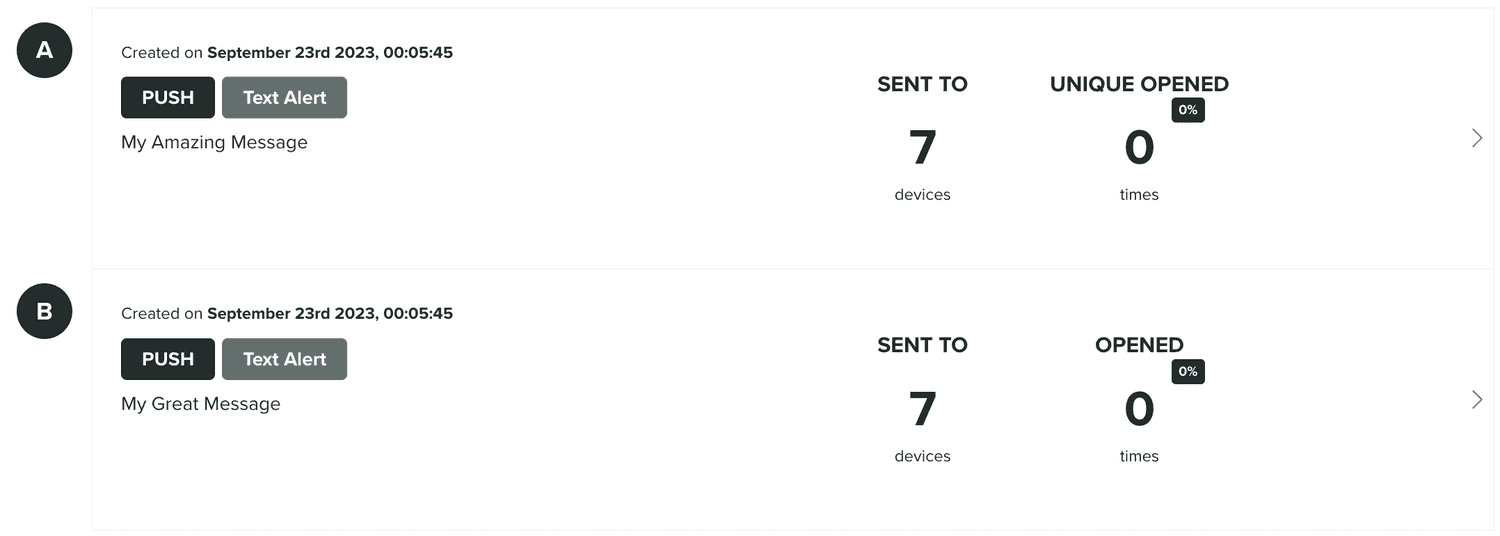
Once your test is finished, this is also the tab where you can see your results, for example, for a tets of type Split you will see the following:
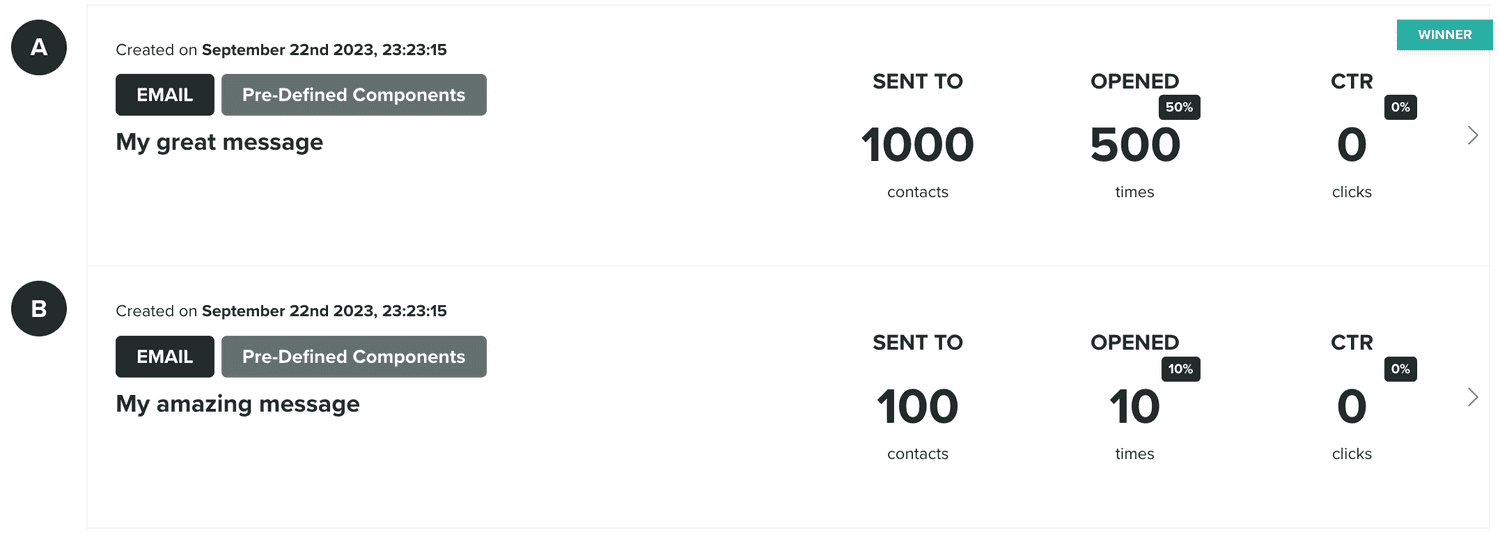
And if it is of type Winner as follows:
Delivery
This tab is only visible after you've sent or scheduled a test. It will display the date you've sent or scheduled your test for.
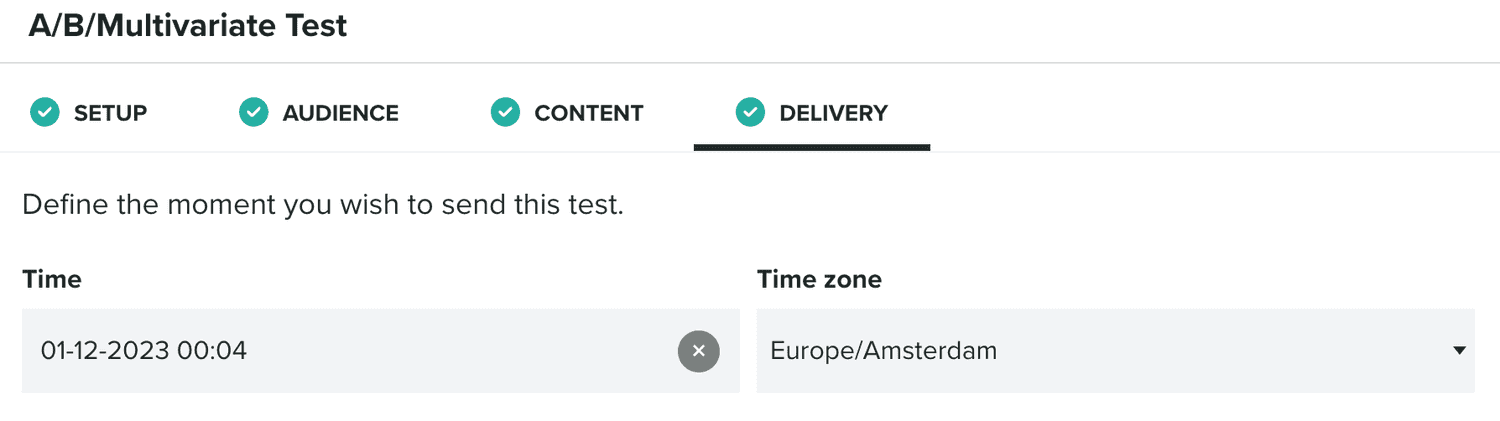
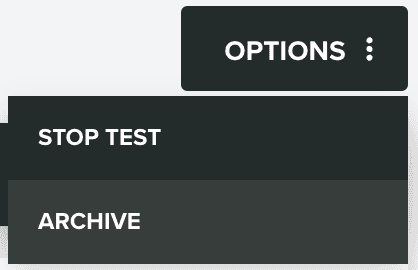
If your test is in the Scheduled state, you can still modify this date. While in Scheduled or Waiting state, you can also stop the test. You do this by expanding the Options menu and click in Stop Test:
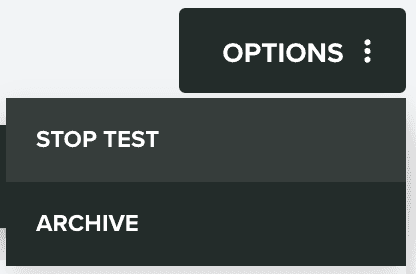
Additionally, you can also archive a test by expanding the Options menu and click in Archive: